

The reality of home printing
Most home offices aren't built for heavy printing. We've moved from high-end office machines to consumer-grade hardware that often struggles with daily work demands. This shift has turned simple tasks into constant troubleshooting for anyone working from a spare bedroom or kitchen table.
We’ve seen a surge in support tickets related to home printing issues. People are trying to get by with printers they may not have chosen themselves, often on less-than-ideal networks. The printing needs themselves are varied – from essential documents and reports to the occasional family photo – demanding a level of flexibility that many home printers aren’t built to provide.
A broken printer is more than a nuisance; it stops you from signing contracts or filing reports. When the hardware fails, your whole schedule slips. Here is how to handle the most frequent failures I see in home setups.
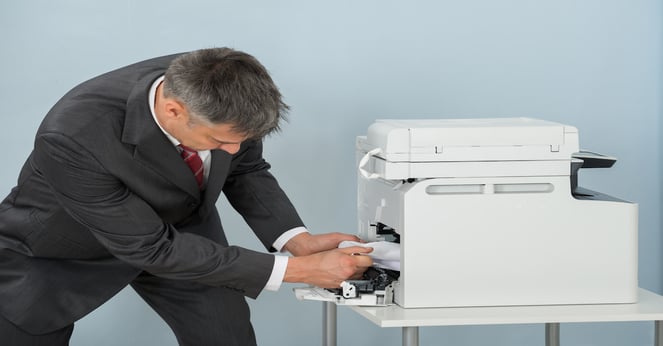
Fixing connection drops
Connectivity problems are often the root cause of many printing issues. A weak or intermittent Wi-Fi signal is especially common in home environments with multiple devices competing for bandwidth. Start by verifying your Wi-Fi signal strength near the printer. If it’s weak, try moving the printer closer to the router, or consider a Wi-Fi extender.
Check your router settings to ensure the printer is connected to the correct network and has a valid IP address. As a troubleshooting step, try connecting the printer directly to your computer with a USB cable to see if that resolves the issue. If it does, the problem is almost certainly with your wireless network. Don’t forget to update the printer’s firmware – manufacturers often release updates that improve network stability.
If you’re still struggling, try resetting the printer’s network settings to factory defaults. Be aware that this will erase any custom network configurations. Finally, consider potential interference from other devices like microwaves or Bluetooth speakers. Sometimes, simply moving these devices can help.
Driver updates and reinstalls
Having the correct printer drivers is absolutely essential. Outdated or corrupted drivers can cause a wide range of problems, from printing errors to complete printer failure. The best place to find the latest drivers is on the manufacturer’s website – HP, Epson, Canon, and Brother all have dedicated support sections.
To troubleshoot driver issues, start by checking Device Manager in Windows (or System Preferences on a Mac) to see if the printer is listed and if there are any error messages. If there are, try uninstalling the printer and then reinstalling it with the latest drivers downloaded from the manufacturer. Windows Update can sometimes install drivers automatically, but these aren’t always the most up-to-date or reliable.
Avoid third-party driver update tools. They usually bundle bloatware or install generic drivers that cause more crashes than they fix. Stick to the official manufacturer site.
Stopping paper jams
Paper jams are a classic printer problem, and they’re often surprisingly easy to prevent. The most common causes include using the wrong type of paper (too thick, too thin, or textured), damaged paper (wrinkled or torn), and overloading the paper tray. Always check your printer’s manual for the recommended paper types and weights.
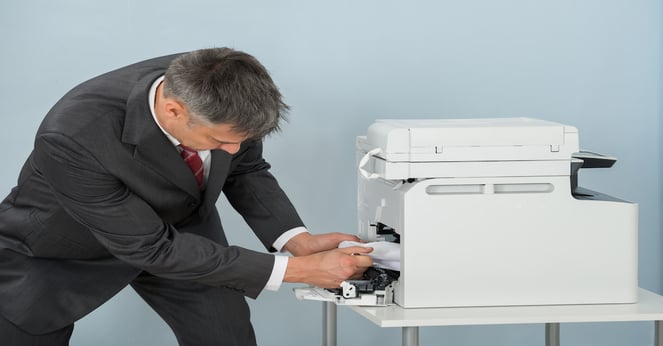
When clearing a paper jam, always turn off the printer first to avoid injury. Carefully follow the instructions in your printer’s manual for locating and removing the jammed paper. Avoid pulling forcefully, as this could damage the printer’s internal components. Once the jam is cleared, fan the paper stack before reloading to prevent sheets from sticking together.
To minimize jams, avoid using wrinkled or damp paper. Regularly clean the paper tray and rollers to remove dust and debris. Consider a printer maintenance schedule to keep everything running smoothly.
- Match the paper weight to your printer's specs.
- Fan the paper before loading.
- Avoid wrinkled or damp paper.
- Regularly clean the paper tray.
Fixing streaks and fades
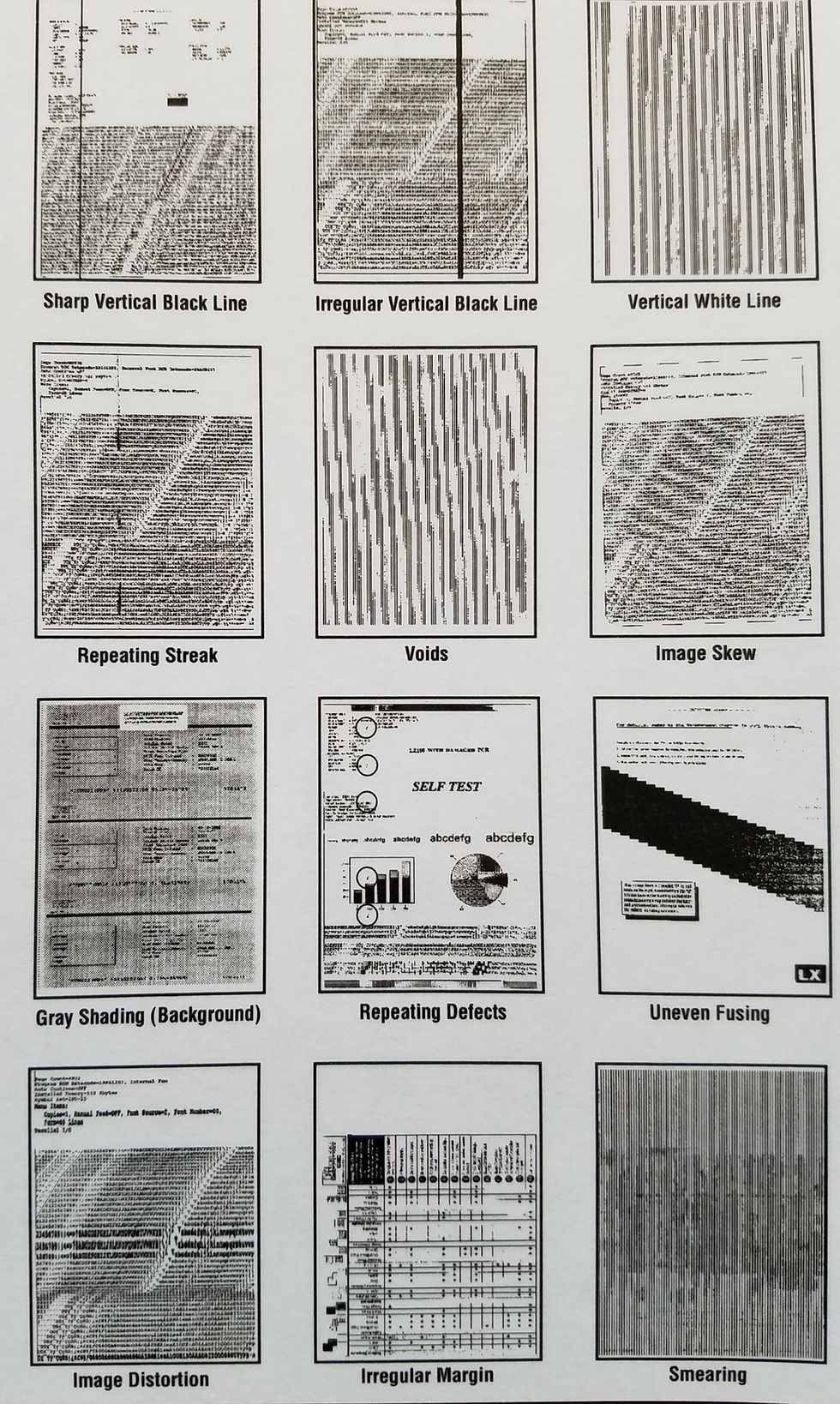
Poor print quality – streaks, fading, or blurry text – can be caused by several factors. Low ink or toner is the most obvious culprit, but clogged print heads and incorrect print settings can also contribute. Start by checking your ink or toner levels and replacing any empty cartridges.
Most printers have a built-in print head cleaning cycle. Run this cycle to clear any clogs. Adjust your print quality settings – higher quality settings will use more ink but produce sharper results. It’s also important to use genuine ink or toner cartridges. While compatible cartridges may be cheaper, they can sometimes cause print quality issues.
Different print quality modes (draft, normal, best) offer varying levels of detail and ink consumption. Choose the mode that best suits your needs. If the problem persists, try printing a test page to diagnose the issue further.
When Your Printer Goes AWOL
The "Printer Offline’ error is incredibly frustrating, but often fixable. It usually indicates a network connectivity issue, a paused printing job, or incorrect printer settings. First, check the printer"s status – is it powered on and connected to the network? Restart both the printer and your computer.
Verify that the printer is set as the default printer in your operating system. In Windows, check the Spooler service – sometimes restarting this service can resolve the issue. To do this, search for 'Services' in the Start menu, find 'Print Spooler', right-click, and select 'Restart'.
Double-check your network connection to ensure the printer has a valid IP address and can communicate with your computer. If you’ve recently changed your network settings, you may need to reconfigure the printer.
Speeding Up Slow Printing
Slow printing speeds can significantly impact productivity. Several factors can contribute to this, including network congestion, large print jobs with high-resolution images, incorrect print settings, and outdated drivers. Close any unnecessary programs running on your computer to free up resources.
Optimize your print settings by reducing image resolution or choosing a lower print quality mode. Update your printer drivers to ensure you have the latest performance improvements. A wired connection is generally faster and more reliable than a wireless connection, so consider using one if possible.
If you're printing over a network, check your network speed and bandwidth. Other devices using the network simultaneously can slow down printing speeds.
Ink & Toner: Running on Empty
Keeping track of ink and toner levels is crucial to avoid printing interruptions. Most printers have a utility that allows you to check levels directly from your computer. Pay attention to low-level warnings and have replacement cartridges on hand.
When you encounter cartridge errors (e.g., "cartridge not recognized"), try removing and reinstalling the cartridge. Ensure the cartridge is properly seated and that there are no obstructions. Using compatible ink or toner cartridges can save money, but be aware that they may not always deliver the same print quality as genuine cartridges.
High-yield cartridges offer a lower cost per page, making them a good option for frequent printing. Consider ink/toner subscription services for automatic delivery of replacement cartridges. Remember to dispose of used cartridges responsibly – many manufacturers offer recycling programs to minimize environmental impact.
Affordable & Reliable Ink and Toner for Remote Work Printers

Compatible with HP Deskjet and Envy series printers · Includes one black and one color cartridge · High-yield XL cartridges for extended use
This value-oriented, highly-rated compatible ink cartridge combo pack offers a cost-effective solution to keep your remote work printer running smoothly, addressing common issues related to ink depletion.

Compatible with Epson WorkForce and Expression series printers · Includes one high-capacity black and one standard color cartridge · Claria ink for sharp, vibrant prints
This value-oriented, highly-rated compatible ink cartridge combo pack offers a cost-effective solution to keep your remote work printer running smoothly, addressing common issues related to ink depletion.

Compatible with Canon PIXMA and MG series printers · Includes one high-yield black and one high-yield color cartridge · XL cartridges for increased page yield
This value-oriented, highly-rated compatible ink cartridge combo pack offers a cost-effective solution to keep your remote work printer running smoothly, addressing common issues related to ink depletion.

Compatible with Brother MFC-J series printers · High-yield XL cartridges · Includes black, cyan, magenta, and yellow cartridges
This value-oriented, highly-rated compatible ink cartridge combo pack offers a cost-effective solution to keep your remote work printer running smoothly, addressing common issues related to ink depletion.
As an Amazon Associate I earn from qualifying purchases. Prices may vary.
No comments yet. Be the first to share your thoughts!