

Stop Printer Panic: It’s Easier Than You Think
I remember the first time I tried to set up a wireless printer. It felt like navigating a spaceship control panel. Hours wasted, multiple restarts, and a whole lot of frustration. Thankfully, those days are largely behind us. Modern printers are designed to be far more user-friendly, and a genuinely fast, painless setup is now achievable for most people.
This guide is about getting your printer up and running in five minutes or less. We’ll cover the most common methods, from using smartphone apps to connecting directly to your Wi-Fi network. While this will work for the vast majority of printers out there, it’s worth acknowledging that very old or obscure models might require a bit more effort.
Manufacturers have been responding to customer feedback, and the setup processes have improved dramatically. You don't need to be a tech expert to get printing today. We’ll focus on practical steps and clear explanations to help you avoid the common pitfalls that cause so much headache.
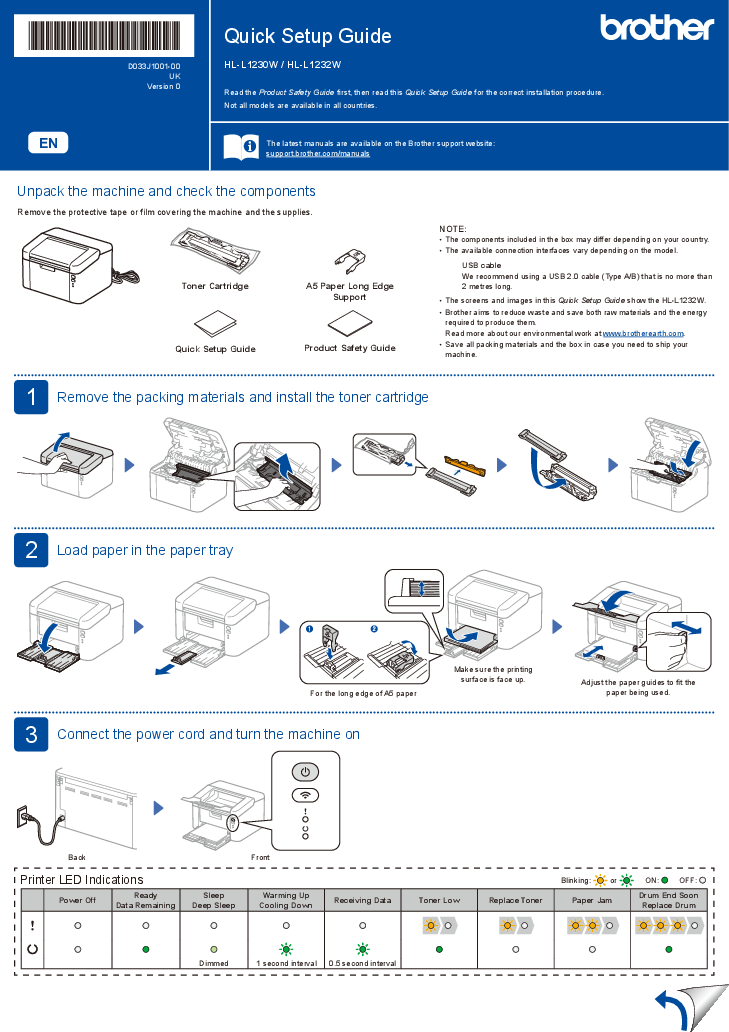
Unboxing and Powering On: The First Steps
Let’s start with the basics. Carefully open the box and remove the printer. Expect a fair amount of packing material designed to protect it during shipping. Be meticulous about removing all tape and cardboard inserts – I've seen people spend ages troubleshooting only to find a small piece of cardboard blocking a sensor!
Place the printer on a stable, level surface. It’s best to plug it directly into a wall outlet, rather than a surge protector. Surge protectors can sometimes interfere with the wireless signal. Locate the power button – it’s usually clearly marked – and press it. Expect some lights to illuminate and perhaps a brief startup sequence with some whirring sounds.
Most printers include starter cartridges. Check the box for these and install them according to the instructions. Don't worry about running out immediately; they're designed to get you up and running. It's a good idea to have replacement cartridges on hand, though.
The App Approach: Most Printers’ Secret Weapon
The easiest way to set up a modern wireless printer is almost always through the manufacturer’s smartphone app. HP has HP Smart, Epson uses Epson Smart Panel, Canon offers Canon PRINT Inkjet/SELPHY, and Brother provides Brother iPrint&Scan. These apps are available for both iOS and Android.
To get started, head to the App Store (iOS) or Google Play Store (Android) and search for the app corresponding to your printer brand. Download and install the app. When you first launch the app, you’ll likely be prompted to create an account or log in. Some apps require this, others don’t.
The app will then guide you through the setup process. It will typically ask for permission to access your location (to find nearby Wi-Fi networks) and Bluetooth (to discover the printer). The app will automatically detect your printer – usually within seconds – and walk you through connecting it to your Wi-Fi network. This often bypasses the need for a computer entirely.
I’ve found the apps are particularly good at handling driver installation automatically. They’ll detect your computer’s operating system and download the necessary drivers in the background. It’s a remarkably streamlined experience – a far cry from the days of struggling with CD-ROMs and manual installations.
- HP Smart: Ideal for HP printers, offering seamless setup and monitoring.
- Epson Smart Panel: Simplifies setup and maintenance for Epson printers.
- Canon PRINT Inkjet/SELPHY: Designed for Canon’s inkjet and photo printers.
- Brother iPrint&Scan: A versatile app for Brother printers, offering printing and scanning features.
Wi-Fi Direct: When Apps Aren't Enough
Sometimes, the app method doesn’t work, or you simply prefer a more direct connection. That’s where Wi-Fi Direct comes in. This allows your printer to connect directly to your computer or phone without needing a router.
To enable Wi-Fi Direct, you’ll need to navigate the printer’s control panel. The exact steps vary depending on the model, but generally, you’ll find a Wi-Fi Direct option in the network settings. The printer will then create its own Wi-Fi network. On your computer or phone, search for available Wi-Fi networks and connect to the printer’s network.
Keep in mind that Wi-Fi Direct often has limitations. It's usually slower than connecting through a router, and the range is limited. It’s a good temporary solution or for occasional printing, but it’s not ideal for heavy use.
Router Connection: The Traditional Route
Connecting your printer to your home Wi-Fi network through the printer’s control panel is the traditional method, and it’s still very reliable. First, access the printer’s Wi-Fi setup menu. Again, the location of this menu varies, but it’s usually found in the network settings.
The printer will scan for available Wi-Fi networks. Select your network from the list. You’ll then be prompted to enter your Wi-Fi password. Be careful to enter the password correctly – it’s case-sensitive! A common problem is accidentally hitting the caps lock key.
If you’re having trouble connecting, double-check the password and ensure your printer is within range of your router. A weak Wi-Fi signal can cause intermittent connection issues. Some routers support WPS (Wi-Fi Protected Setup), which allows you to connect with a button press, but WPS has known security vulnerabilities, so I generally don’t recommend it.
Older printers might only support the 2.4GHz Wi-Fi band. If your router broadcasts both 2.4GHz and 5GHz networks, make sure you’re selecting the 2.4GHz network for compatibility.
Driver Installation: Letting Your Devices Talk
Drivers are essential software that allows your computer to communicate with your printer. Fortunately, the manufacturer’s app usually handles driver installation automatically during the setup process. If not, you'll need to install them manually.
To download the correct drivers, visit the printer manufacturer’s website. Navigate to the support section and search for your printer model. You’ll typically find two types of drivers: full feature software and basic drivers. The full feature software includes all the bells and whistles, while the basic drivers provide essential printing functionality.
Windows and macOS often attempt to automatically find and install drivers, but I recommend using the manufacturer’s drivers for optimal performance and compatibility. For Apple devices, AirPrint is a convenient option that often eliminates the need for driver installation altogether.
Troubleshooting Common Setup Snags
Even with the improved setup processes, you might encounter a few hiccups. One common issue is the printer not being found during setup. Try restarting both the printer and your router. Ensure the printer is powered on and connected to the same Wi-Fi network as your computer or phone.
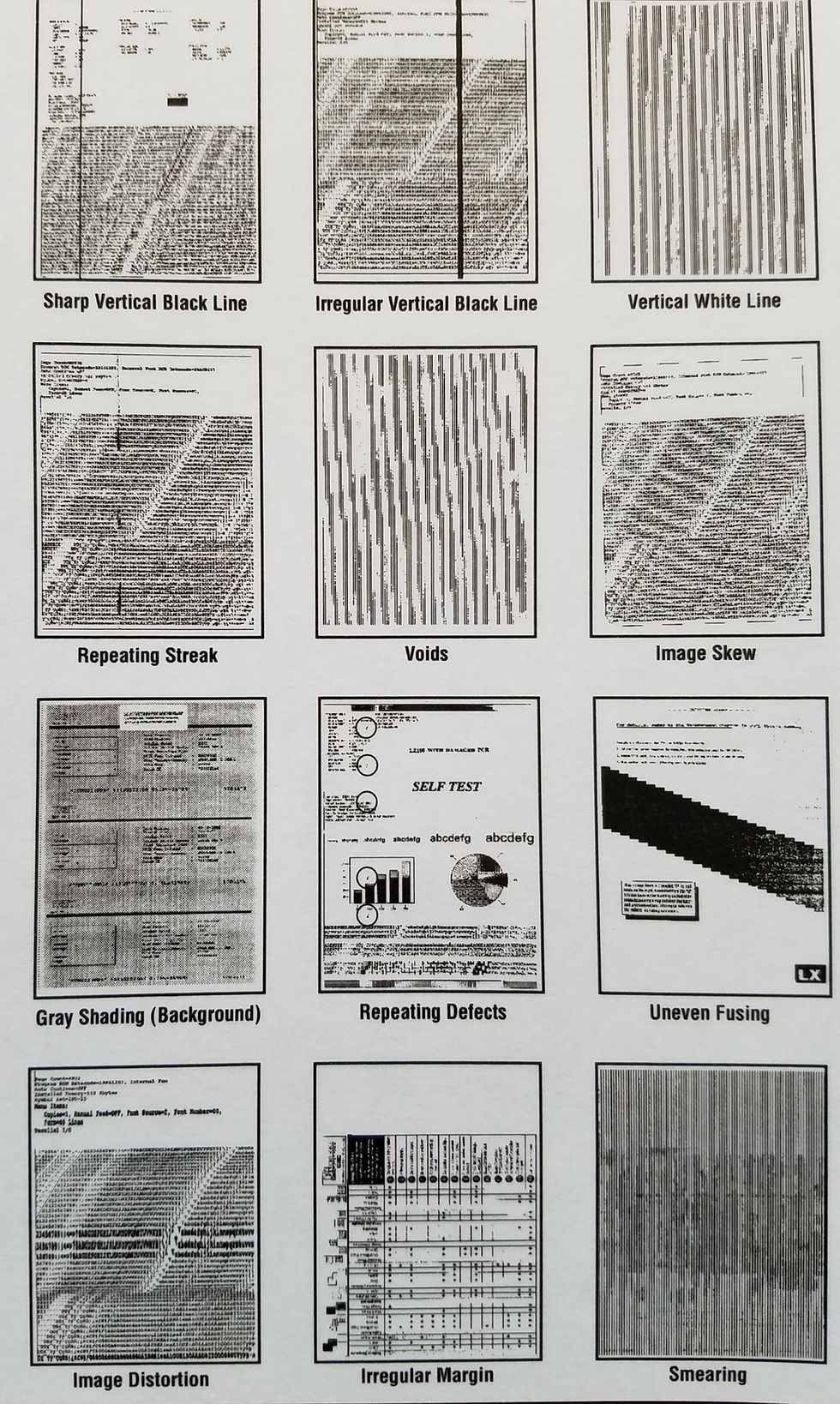
If the connection keeps dropping, check the Wi-Fi signal strength. Move the printer closer to the router or consider using a Wi-Fi extender. Another frequent problem is poor print quality after setup. Run the printer’s built-in cleaning cycle to clear any clogged nozzles. Make sure you’re using the correct paper type and settings.
Error messages on the printer’s display can be cryptic. Consult the printer’s manual for explanations and troubleshooting steps. The manufacturer’s website usually has a comprehensive support section with FAQs and troubleshooting guides. Here are some helpful links:
HP Support: Epson Support: Canon Support: Brother Support:
- Printer not found: Restart printer and router, check Wi-Fi connection.
- Connection dropping: Check signal strength, use a Wi-Fi extender.
- Poor print quality: Run cleaning cycle, verify paper type and settings.
- Error messages: Consult the printer’s manual and manufacturer’s support website.
Printers That Shine: Quick Setup Champions (2026)
Based on recent reviews from Best Buy and Amazon, several printers consistently stand out for their easy setup. The Brother HL L2480DW (as mentioned by the New York Times in 2026) is frequently praised for its simple interface and clear instructions. It's a monochrome laser printer, so it's ideal for text-heavy printing.
The HP Envy 6055e is another popular choice, especially for home users. Best Buy reviewers consistently highlight its straightforward app-based setup. It’s an all-in-one printer, offering printing, scanning, and copying capabilities. You can find it on Amazon:
Finally, the Canon Pixma TS3522 is often recommended for its affordability and ease of use. Users on Amazon appreciate its compact size and simple setup process. While it's not the fastest printer, it's a solid option for basic home printing needs. It can be found here:
No comments yet. Be the first to share your thoughts!