

What changed with 2026 printers
Printers are still a headache. Even with better resolution and speed, modern all-in-ones cram too many components into small shells, which creates more ways for things to break. Wireless setups and constant software updates often cause more connectivity drops than they fix.
The past few years have also highlighted vulnerabilities in the supply chain. Getting replacement parts, even for common models, can take longer than it used to. This means a simple fix could turn into a more significant disruption. It's not just about hardware, either. Printer security is a growing concern, with potential vulnerabilities that could expose your network to threats. We’re seeing more sophisticated malware targeting printers, so keeping firmware updated isn’t just about print quality anymore.
I’ve noticed a trend toward more reliance on cloud-based printing services, which adds another potential point of failure—your internet connection. A spotty Wi-Fi signal can bring everything to a halt. The good news is that manufacturers are responding with better diagnostic tools and more user-friendly interfaces. However, the basic principles of printer troubleshooting remain the same: identify the problem, isolate the cause, and apply the appropriate solution. It’s just that the solutions are sometimes less straightforward than they used to be.
Looking ahead, I expect to see continued integration of AI-powered diagnostics in printers. This could automate a lot of the basic troubleshooting steps and provide more accurate error reporting. But for now, a solid understanding of common printer problems is still your best defense against frustrating downtime.
Fixing paper jams
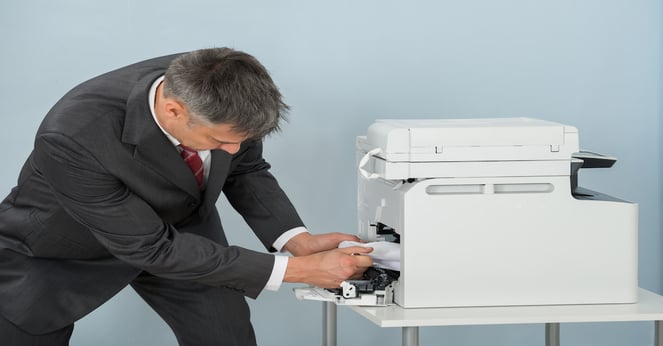
Paper jams are the bane of many an office worker’s existence. But it’s rarely as simple as just pulling out a crumpled sheet of paper. The issue can stem from a surprising number of sources. First, consider the paper itself. Using the wrong type of paper for your printer—too thick, too thin, or with the wrong coating—is a common culprit. Always check your printer’s manual for recommended paper specifications. Manufacturer-recommended paper is worth the investment.
Humidity plays a significant role. Paper absorbs moisture from the air, causing it to curl or stick together. This is especially true in humid climates. Store your paper in a cool, dry place to prevent this. Worn rollers are another frequent cause. Over time, the rollers that feed the paper can become smooth and lose their grip. You can usually clean the rollers with a lint-free cloth dampened with distilled water, but this needs to be done carefully. Check your printer’s manual for specific instructions.
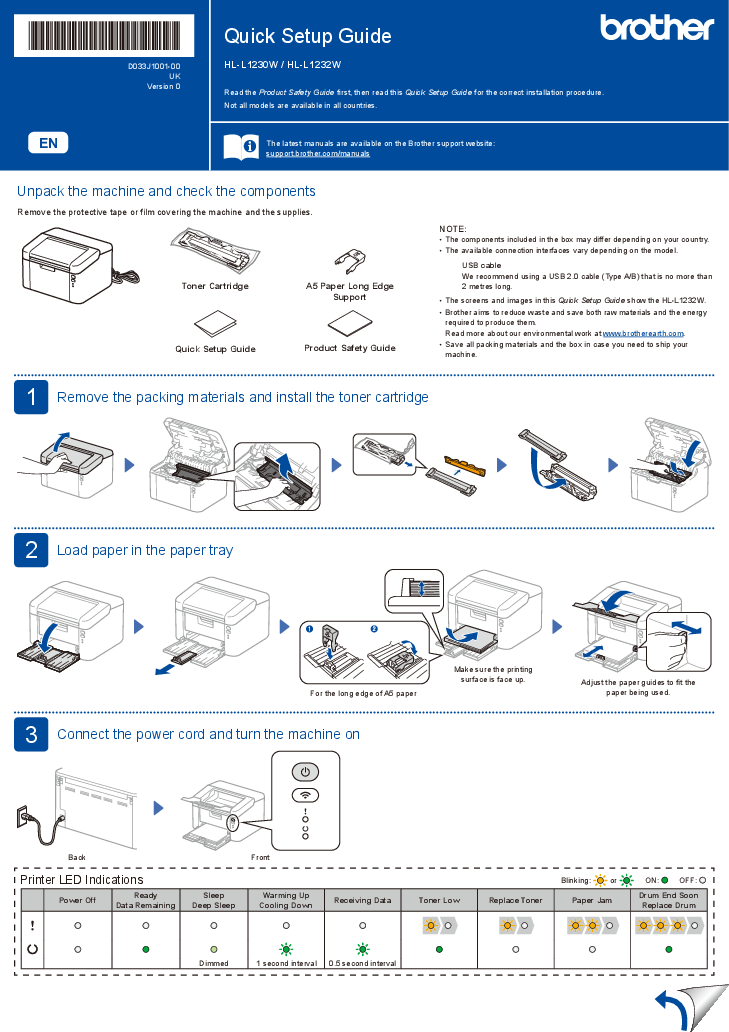
Don’t overlook the sensors. Printers use sensors to detect the presence of paper and to identify jams. If a sensor is malfunctioning, it can trigger a false jam error or prevent the printer from recognizing paper. These sensors are delicate and can be damaged by dust or debris. Sometimes, a jam seems impossible to clear because the printer hasn’t actually registered that the paper has been removed. A full power cycle—turning the printer off and unplugging it for a few minutes—can sometimes reset the sensors.
As a preventative measure, I recommend cleaning your printer’s rollers every few months, or more frequently if you print heavily. Also, avoid refilling the paper tray too full, as this can increase the risk of jams. If you’re consistently experiencing jams, consider having a technician inspect your printer for worn or damaged parts.
- Check for crumpled or torn paper.
- Ensure you're using the correct paper type.
- Clean the paper rollers with a lint-free cloth.
- Inspect the paper tray for obstructions.
- Power cycle the printer to reset sensors.
Wireless connection issues
Wireless printing offers convenience, but it’s often a source of frustration. The most common problem is the printer simply not showing up on the network. First, make sure the printer is connected to the same Wi-Fi network as your computer or mobile device. It sounds obvious, but it’s often the issue. Check the printer’s display panel for the Wi-Fi signal strength and network name. If the printer isn’t connecting to the network, try restarting both the printer and your router.
Intermittent connectivity is another common complaint. This can be caused by interference from other devices, such as microwaves or cordless phones. Try moving the printer closer to the router, or switching to a different Wi-Fi channel. Slow printing speeds over Wi-Fi can also be frustrating. This is often due to network congestion or a weak Wi-Fi signal. A wired connection—using an Ethernet cable—is always more reliable and faster than Wi-Fi, and can be a good temporary fix while you troubleshoot the wireless connection.
Security is also a concern with wireless printing. Make sure your Wi-Fi network is password-protected, and enable WPA3 encryption if your router supports it. Consider enabling the printer’s security features, such as MAC address filtering, to restrict access to authorized devices only. Regularly check for and install firmware updates for your printer, as these often include security patches.
I’ve found that sometimes, the printer’s wireless adapter just needs a reset. Most printers have a reset button for the wireless connection, usually located on the back or inside the access panel. Consult your printer’s manual for instructions.
- Verify the printer is connected to the correct Wi-Fi network.
- Restart the printer and router.
- Check for Wi-Fi interference.
- Consider a wired connection.
- Update printer firmware.
- Enable WPA3 encryption on your router.
Streaks, blurs, and fading
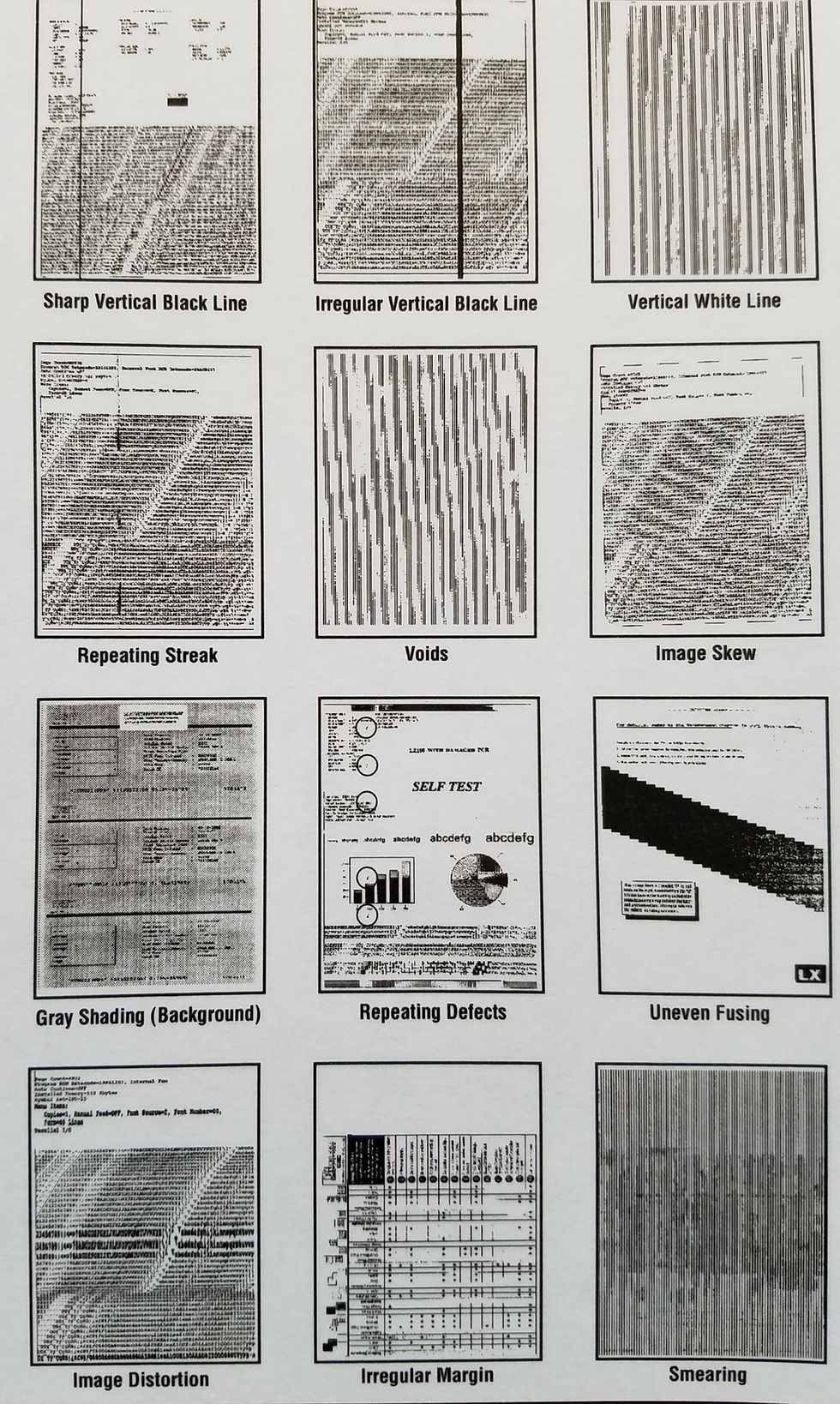
Poor print quality can manifest in several ways: streaks, blurs, fading, or uneven color. It's not always a hardware problem, though. First, check your toner or ink levels. Low levels are an obvious cause, but even slightly depleted cartridges can affect print quality. Next, consider the paper type. Using the wrong paper can lead to smudging or bleeding. Ensure you’re using paper that's compatible with your printer and the type of print job.
For inkjet printers, clogged nozzles are a common culprit. Most printers have a built-in printhead cleaning cycle that can dislodge dried ink. Run this cycle a few times, but be aware that it uses ink, so don’t overdo it. For laser printers, drum problems can cause streaks or uneven toner distribution. The drum is a sensitive component and may need to be replaced if it’s damaged.
Paper type settings in your printer driver are crucial. Make sure the settings match the type of paper you’re using. Incorrect settings can cause the printer to apply the wrong amount of toner or ink. Printhead alignment can also affect print quality. Most printers have an alignment utility that can help you optimize the printhead position.
I’ve noticed a definite difference in print quality between original cartridges and generic ones. While generic cartridges can save you money, they sometimes don’t deliver the same level of performance or reliability. It’s a trade-off, but something to consider.
- Check toner/ink levels.
- Use compatible paper.
- Run the printhead cleaning cycle (inkjet).
- Verify paper type settings.
- Align the printhead.
- Consider original cartridges.
Driver problems
Outdated, corrupted, or incompatible printer drivers are a remarkably common source of problems. If your printer suddenly stops working after a Windows update, the driver is often the culprit. The update may have overwritten the old driver with an incompatible version. To identify driver issues, check Device Manager in Windows. Look for any devices with a yellow exclamation mark, which indicates a problem with the driver.
The best way to fix driver problems is to download the latest drivers from the manufacturer’s website. HP, Epson, Canon, and Brother all have dedicated support sections on their websites where you can find drivers for their printers. Before installing a new driver, completely uninstall the old one. Use the Programs and Features control panel in Windows to uninstall the printer software, then delete any remaining driver files from the Windows system folder.
Finding drivers for older printers can be challenging. Manufacturers often stop providing support for older models. In this case, you may be able to find drivers on third-party websites, but be cautious about downloading from untrusted sources. Windows Update sometimes offers generic drivers that can work with older printers, but they may not provide all the features or functionality.
I frequently see cases where users try to install drivers that aren’t specifically designed for their operating system. Make sure you download the driver that’s compatible with your version of Windows (or macOS). A driver designed for Windows 11 may not work correctly on Windows 10, and vice versa.
Error Codes Explained: Decoding the Messages
Printer error codes can seem like a foreign language. Fortunately, manufacturers provide resources to help you decipher them. Here's a breakdown of some common error codes from major brands. For HP printers, an error code like "0x00000709’ often indicates a problem with the print spooler service in Windows. Restarting the service or reinstalling the printer driver can often resolve this. For Epson printers, a ‘0x97’ error typically means there’s a paper jam, even if you don"t see one.
Canon printers frequently display error codes related to ink cartridges, such as "B200’ (indicating an issue with the ink cartridge) or ‘B201’ (indicating a problem with the ink cartridge holder). Try removing and reinstalling the cartridges. Brother printers often use error codes like ‘40’ (indicating a paper jam) or ‘50’ (indicating a stuck toner cartridge). Consult the printer"s manual for specific instructions on clearing these errors.
Error codes are often misleading. A 'paper jam' message might actually mean a sensor is dirty or stuck. I usually start with a hard restart before taking the machine apart.
I recommend keeping a list of common error codes for your printer model and the corresponding troubleshooting steps. This can save you a lot of time and frustration when you encounter a problem. The manufacturers' support websites are the best place to find this information.
- HP 0x00000709: Restart the print spooler or reinstall the driver.
- Epson 0x97: Check for hidden paper jams.
- Canon B200/B201: Reinstall ink cartridges.
- Brother 40/50: Clear paper jam or stuck toner.
Common Printer Issues & Troubleshooting - 2026
| Error Code/Description | Manufacturer (Common) | Possible Cause | Suggested Solution |
|---|---|---|---|
| 0x00000709 | HP, Canon | Virtual printer driver issue; often after Windows update. | Restart the Print Spooler service. Reinstall the printer driver. Check Windows Update for further fixes. |
| ESC/P Raster Error | Epson, Lexmark | Data transmission error between computer and printer, often related to print job formatting. | Simplify the document being printed. Update printer driver. Try printing from a different application. |
| Paper Jam Error | All Manufacturers | Physical obstruction of the paper path. | Carefully remove jammed paper following printer's instructions. Check for small scraps of paper. Ensure paper tray is properly loaded and adjusted. |
| Printer Offline | HP, Brother, Canon | Printer is not communicating with the computer. | Check power and connection cables. Restart printer and computer. Ensure printer is selected as default printer. Troubleshoot network connection if wireless. |
| 0x000006ba | HP | Problem with the print processor. | Restart the Print Spooler service. Update the printer driver. Try a different print driver. |
| Low Toner/Ink | All Manufacturers | Toner or ink cartridge is nearing empty. | Replace the toner or ink cartridge. Check cartridge levels through printer software. |
| 404.4 Error | HP | Printer did not respond to a USB command. | Try a different USB port. Use a different USB cable. Restart the printer and computer. |
| Ghost Image / Streaking | Brother, Canon | Dirty or damaged drum unit or toner cartridge. | Clean the drum unit (if applicable). Replace the toner cartridge. Check paper quality. |
Illustrative comparison based on the article research brief. Verify current pricing, limits, and product details in the official docs before relying on it.
When to Call a Pro (and When to Replace)
Sometimes, despite your best efforts, a printer is beyond repair. It’s important to know when to call a professional technician and when it’s more cost-effective to simply replace the printer. If the printer is experiencing a major hardware failure, such as a broken printhead or a malfunctioning power supply, the cost of repair can be significant. Get a quote from a qualified technician before proceeding.
Compare the cost of repair to the price of a new printer. If the repair cost is more than half the price of a new printer, it’s usually more sensible to replace it. Also, consider the age of the printer. If it’s an older model, it may be difficult to find replacement parts, and it’s more likely to experience other problems in the future.
When disposing of an old printer, be sure to do so responsibly. Many manufacturers offer recycling programs for their products. You can also check with your local waste management authority for information on electronic waste recycling options. Don't just throw it in the trash.
Ultimately, the decision of whether to repair or replace depends on your individual circumstances. Weigh the costs and benefits carefully and choose the option that makes the most sense for you.
No comments yet. Be the first to share your thoughts!