

The New Wireless Landscape: WiFi 7, Bluetooth 5.4, and Your Printer
WiFi 7 and Bluetooth 5.4 are now standard. They are faster and more reliable than previous versions, though your printer only benefits if your router supports them. WiFi 7, in particular, aims to reduce latency and improve performance in congested environments, which could translate to smoother printing experiences. Bluetooth 5.4 focuses on improving connection stability and energy efficiency. However, it’s important to be realistic; the full benefits of these technologies won’t be realized until wider adoption occurs.
Right now, the rollout is gradual. Many homes and offices are still operating on older WiFi standards, and even newer routers may not fully support all the features of WiFi 7. This means that while your new printer might be capable of taking advantage of these advancements, your existing network infrastructure could be a bottleneck. There's also the matter of printer firmware needing to be updated to properly utilize the new standards.
New standards don't fix old hardware. You will still deal with dropped connections and slow speeds if the printer firmware is out of date. Most fixes remain the same whether you are on WiFi 7 or an older 2.4GHz band.
Issue #1: Printer Not Showing Up on WiFi – The SSID Struggle
The most frequent complaint I hear is that a printer simply doesn’t appear on the WiFi network during setup. Often, this isn’t a problem with the printer itself, but with the network configuration. A common culprit is a hidden SSID – a network name that isn’t broadcast. Your printer might not be able to find a network it can’t "see’. You’ll need to manually enter the SSID and password into the printer"s network settings.
Another issue is confusion over the 2.4GHz, 5GHz, and 6GHz bands. Many printers, especially older models, only support the 2.4GHz band. If your router is configured to broadcast separate SSIDs for each band, make sure you’re connecting the printer to the 2.4GHz network. The 5GHz and 6GHz bands offer faster speeds, but have shorter range and may not be compatible with all devices.
Finally, router compatibility can play a role. Some routers have known issues with certain printers. Check your router’s documentation or online forums for reported compatibility problems. To troubleshoot, first verify the printer’s WiFi settings are correct. Access these settings through the printer’s control panel, usually under "Network’ or ‘Wireless". Ensure the correct network is selected and the password is entered accurately. A strong WiFi signal is also essential – move the printer closer to the router if necessary.
Issue #2: Intermittent WiFi Drops – The WiFi 7 Handshake Problem?
Printers that connect intermittently – dropping the connection after a few minutes or hours – are particularly frustrating. This can be caused by interference from other wireless devices, such as microwaves, cordless phones, or even neighboring WiFi networks. Try changing the printer’s WiFi channel in the router settings to a less congested one. Tools like WiFi Analyzer (available for various platforms) can help you identify the least crowded channels.
I’m starting to wonder if we’ll see an uptick in this issue with the wider adoption of WiFi 7. As people upgrade their routers and devices, there’s a chance that some devices will struggle to negotiate stable connections. Router firmware bugs, especially in early WiFi 7 implementations, could also be to blame. Check your router manufacturer’s website for firmware updates.
Checking your router’s logs can provide clues. Most routers keep a log of connection events, which might show why the printer is disconnecting. Look for error messages related to the printer’s IP address or MAC address. A faulty printer’s internal WiFi module could also be the problem, though this is less common.
- Check for interference from other devices.
- Update router firmware.
- Review router logs for error messages.
- Consider a different WiFi channel.
Issue #3: Bluetooth Pairing Failures – The Device Limit Dilemma
Bluetooth connections are often simpler to set up than WiFi, but they’re not without their own set of problems. Pairing failures are common, often due to the printer not being in pairing mode, or the device trying to connect being too far away. Bluetooth 5.4 aims to improve pairing reliability and range, but it doesn't eliminate these issues entirely.
A significant limitation of Bluetooth is the device limit. Many computers and smartphones can only maintain a limited number of active Bluetooth connections simultaneously. If you’ve already paired several devices, you might need to disconnect one before you can connect the printer. Range is another factor – Bluetooth signals are relatively weak, so keep the printer and device close together during pairing.
Troubleshooting steps include removing old pairings from both the printer and the device. Ensure the printer is in pairing mode – usually indicated by a blinking light. Restart both the printer and the device. If you’re still having trouble, consult the printer’s manual for specific pairing instructions.
Issue #4: IP Address Conflicts – When Two Devices Claim the Same Spot
IP address conflicts occur when two devices on the network are assigned the same IP address. This causes communication problems and can prevent the printer from connecting. It's a surprisingly common issue, and people often don’t realize it’s happening. The solution is to ensure that each device has a unique IP address.
Routers typically assign IP addresses dynamically using DHCP. However, you can also assign static IP addresses, which remain constant. Assigning a static IP address to the printer can prevent conflicts. Access the printer’s network settings and configure a static IP address that’s outside the DHCP range of your router. Consult your router’s documentation for instructions on finding the DHCP range.
To identify a conflict, check your router’s connected devices list. If you see two devices with the same IP address, you've found the problem. One of the devices will need to be reconfigured with a different IP address.
- Check router's connected devices list.
- Assign a static IP address to the printer.
- Ensure the static IP is outside the DHCP range.
Issue #5: Driver Problems – The Software Side of Things
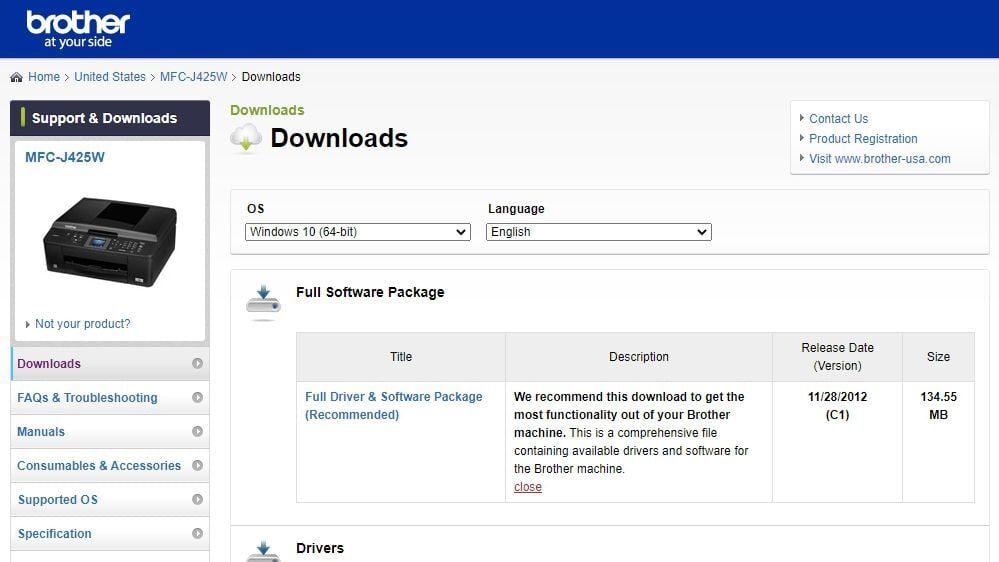
Often overlooked, driver problems are a major cause of printer connection issues. Outdated, corrupted, or incompatible printer drivers can prevent the printer from communicating with your computer. The first step is to ensure you have the latest drivers installed. Windows Update and macOS System Preferences often provide driver updates automatically.
However, it’s always best to download the drivers directly from the printer manufacturer’s website – HP, Epson, Canon, etc. Make sure you download the correct driver for your operating system (Windows, macOS, Linux) and printer model. Using the wrong driver can cause even more problems.
Driver conflicts with other software can also occur. If you’ve recently installed new software, try temporarily disabling it to see if it’s interfering with the printer. Reinstalling the printer driver can often resolve these conflicts.
Issue #6 & #7: Firewall and Security Software Interference & HP/Epson App Issues
Firewalls and security software are designed to protect your computer, but they can sometimes block legitimate printer connections. To resolve this, you need to add the printer as an exception in your firewall and security software settings. This allows the printer to communicate with your computer without being blocked.
Printer manufacturer apps like HP Smart and Epson iPrint often fail during the initial handshake. If the app can't find the printer, bypass it by using the Windows 'Add a printer' tool or macOS System Settings to install the device manually using its IP address.mon issues include setup failures, printing errors, and connectivity problems. According to HP support (support.hp.com), using the Diagnose & Fix tool within the HP app can resolve many common printing issues. Similarly, Epson’s support site (epson.com) offers troubleshooting guides for its apps.
Troubleshooting steps for these apps include reinstalling the app, clearing the cache, and ensuring you’re using the latest version. If the app continues to cause problems, consider using an alternative printing solution, such as printing directly from the operating system.
- Add printer as an exception in firewall/security software.
- Reinstall printer manufacturer app.
- Clear app cache.
- Update app to the latest version.
Beyond Troubleshooting: Preventing Future Connection Headaches
Preventative maintenance is key to avoiding these connection issues. Regularly update your printer’s firmware – manufacturers often release updates that improve connectivity and fix bugs. Ensure a strong WiFi signal by positioning the printer close to the router and minimizing obstacles.
Reducing interference from other wireless devices can also help. Consider using a dedicated wireless network for your printer, if feasible. This isolates the printer from other network traffic and reduces the risk of interference. Regularly check your network settings to ensure everything is configured correctly.
I think a little proactive effort can save a lot of frustration down the road. By keeping your printer and network up to date and well-maintained, you can minimize the chances of encountering connection problems and enjoy a smoother printing experience.
No comments yet. Be the first to share your thoughts!