

why printers still break
Printers are still the most frustrating piece of tech in any office. Even in 2026, they break for no apparent reason, usually right when you have a deadline. This guide covers how to fix the stuff that actually goes wrong, from jammed rollers to software that refuses to talk to your hardware.
This guide focuses on practical solutions. We'll cover a range of problems, from the incredibly common paper jams to more complex connectivity and print quality issues. You’ll find advice for both inkjet and laser printers, because the solutions aren’t always the same. The goal is to get you back to printing quickly and efficiently, minimizing downtime and maximizing productivity.
We’ll explore troubleshooting steps you can take yourself, before considering a service call. It’s surprising how often a simple fix can resolve a seemingly major problem. Knowing what to check and how to approach the issue can save you time, money, and a whole lot of aggravation. Expect to see familiar issues addressed with current best practices.
clearing stubborn paper jams
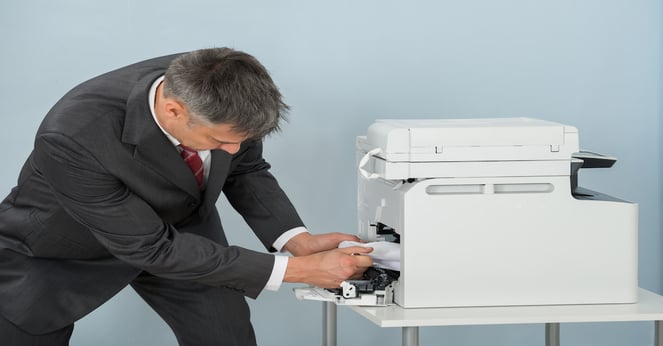
Paper jams usually happen because the paper is damp, the tray is overstuffed, or the sheets aren't aligned. If you've checked the tray and it still jams, the problem is likely deeper in the mechanical path.
Static electricity can contribute to paper jams, especially in dry environments. The paper clings together, making it difficult for the printer to pull a single sheet. Similarly, worn rollers can lose their grip, leading to misfeeds and jams. These rollers are responsible for guiding the paper through the printer, so their condition is critical. Check the user manual for your printer model to locate the rollers and learn how to clean or replace them.
Here’s a step-by-step guide for clearing jams. Always turn off and unplug the printer before attempting to remove jammed paper. For laser printers, carefully remove the paper tray and inspect the paper path. Gently pull the jammed paper in the direction of the normal paper flow, avoiding tearing. Inkjet printers often have access panels on the back or sides; consult your manual for specifics. Be thorough – small scraps of paper can cause future jams.
Preventative measures are key. Store paper in a cool, dry place to prevent it from becoming damp or brittle. Use the recommended paper weight for your printer – using paper that is too thick or too thin can cause problems. Regularly clean the paper path with a lint-free cloth to remove dust and debris. Consider a paper ream with a higher quality finish to reduce static.
- Turn off and unplug the printer.
- Remove the paper tray and any access panels.
- Gently pull the jammed paper in the direction of the paper path.
- Inspect the entire paper path for remaining scraps.
- Reassemble the printer and test with a new sheet of paper.
wi-fi and usb connection fixes
Connectivity issues are a major source of printer frustration. Wireless connections, while convenient, can be unreliable. A printer not showing up on your network, intermittent connection drops, or entering an incorrect password are common problems. Double-check your Wi-Fi password, and ensure the printer is within range of your router.
If the printer is visible but won't print, restart the router. It sounds like a cliché, but it clears IP conflicts. I've found that Windows updates often break printer spoolers, so check for pending updates if the hardware suddenly stops responding.
USB connections aren't immune to problems either. If your printer isn't recognized by your computer, try a different USB cable and port. Driver conflicts are a frequent culprit. You may need to uninstall and reinstall the printer driver. Always download drivers from the manufacturer’s website – avoid third-party driver download sites, as they can contain malware.
IP address conflicts can also cause connectivity issues. Your printer and another device on your network might be assigned the same IP address. You can usually resolve this by assigning a static IP address to your printer within your router’s settings. Check your router's documentation for instructions. Keeping your printer's firmware updated is also crucial for maintaining a stable connection.
- Verify Wi-Fi password and signal strength.
- Restart printer and router.
- Update operating system.
- Try a different USB cable and port.
- Reinstall printer driver.
- Assign a static IP address to the printer.
Print Quality Woes: Streaks, Fading, and Blurs
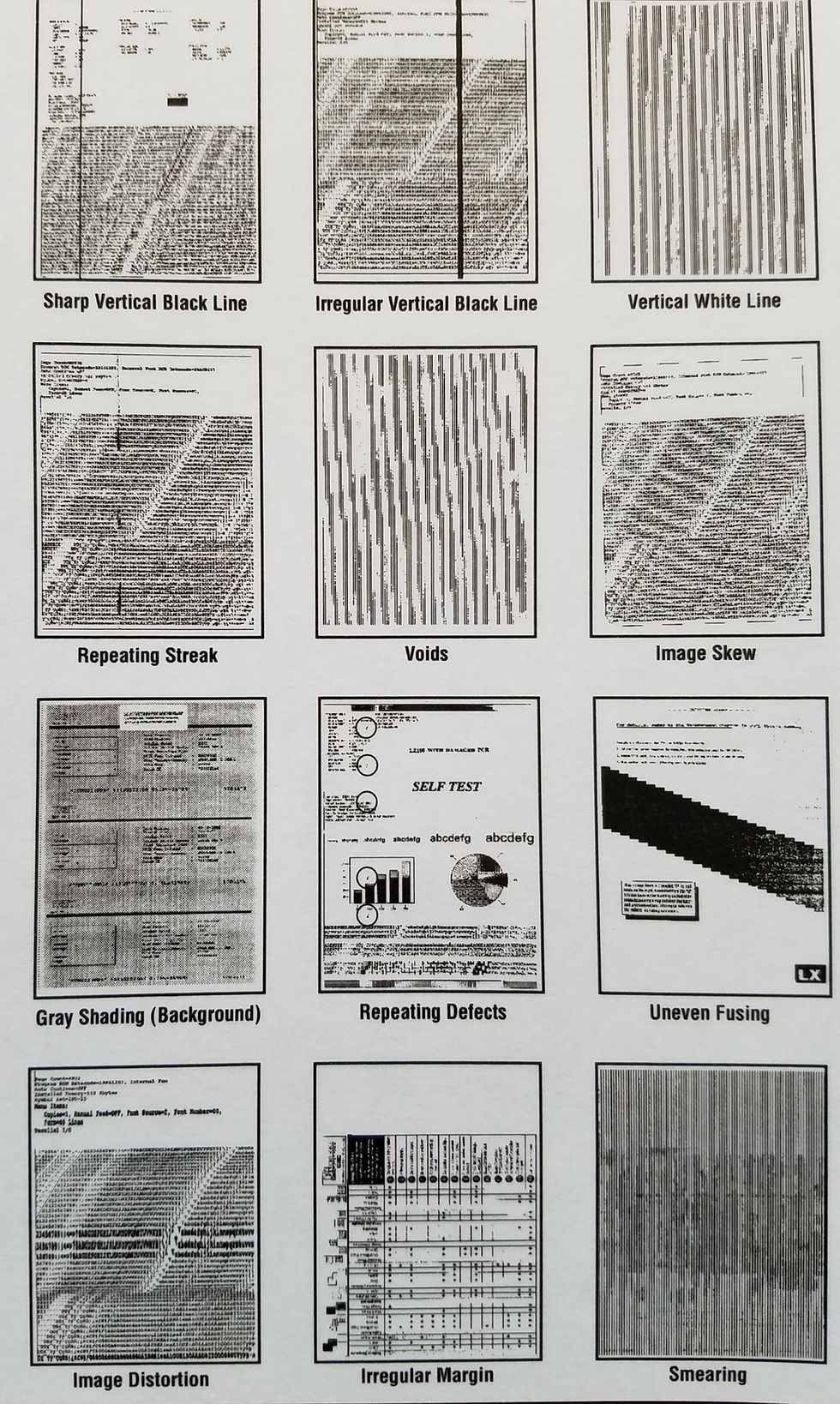
Poor print quality is a broad issue with many potential causes. Streaks, fading, and blurry prints can all indicate different problems. The first thing to check is ink or toner levels. Low ink or toner is the most common culprit, but it's not always the only one.
Inkjet printers can suffer from clogged nozzles. This happens when ink dries and blocks the tiny openings in the printhead. Most inkjet printers have a built-in printhead cleaning function – run this several times to clear the blockage. Laser printers can experience issues with the drum unit, which transfers toner to the paper. A damaged or worn drum can cause streaks or smudges.
Paper type plays a significant role in print quality. Using the wrong type of paper can result in poor ink absorption, smearing, or uneven printing. Always use paper that is designed for your printer type. Sometimes, the problem isn’t the printer at all, but the document itself. Low-resolution images will always print blurry, regardless of your printer settings.
To check toner density on a laser printer, print a test page from the printer’s control panel. This page often includes a gradient that allows you to assess the toner coverage. If the gradient is uneven or faded, it may indicate a problem with the toner cartridge or the drum unit. Regular cleaning of the printer’s interior can also help improve print quality.
Driver Disasters: Installation and Conflicts
Printer drivers are essential software that allows your computer to communicate with the printer. Without the correct driver, your printer simply won't work. Finding the right driver can be tricky, especially with so many printer models and operating systems. The best source for drivers is always the printer manufacturer's website.
Common driver installation problems include failed installations, error messages during installation, and compatibility issues. Ensure you're downloading the driver specifically designed for your printer model and your operating system (Windows, macOS, etc.). Running the installation file as an administrator can sometimes resolve permission issues.
Driver conflicts can occur when you have multiple printer drivers installed, or when a driver is corrupted. To resolve conflicts, completely uninstall the printer driver from your computer through the Control Panel (Windows) or System Preferences (macOS). Then, download and install the latest driver from the manufacturer’s website.
Be cautious when using third-party driver download sites. These sites often bundle unwanted software or malware with the drivers. Sticking to the manufacturer’s website is the safest and most reliable approach. Regularly checking for driver updates is also a good practice, as manufacturers often release updates to improve performance and fix bugs.
Error Codes: Decoding the Messages
Many printers display error codes when they encounter a problem. These codes can be cryptic, but they often provide valuable clues about what’s going wrong. While the specific codes vary by manufacturer, some common errors appear across brands.
For example, an HP printer displaying a “0xC19A024D” error might indicate a firmware issue. Epson printers often use codes starting with “0x,” while Canon printers may display codes like “B050” (indicating a paper jam). Brother printers frequently use codes with letters and numbers, such as “DR-501” (indicating a drum unit error).
Here’s a simplified table of common error codes and potential solutions:
It’s important to consult your printer’s manual or the manufacturer’s website for a complete list of error codes and their meanings. Error codes can be vague, and sometimes require further investigation. Don't hesitate to search online forums or contact the manufacturer's support team for assistance.
- Canon B050: Clear the paper path and reset the sensors.
- Error Code: 0xC19A024D (HP) | Meaning: Firmware issue | Solution: Update printer firmware.
- Error Code: DR-501 (Brother) | Meaning: Drum unit error | Solution: Replace the drum unit.
- Error Code: 0x97 (Epson) | Meaning: Paper out | Solution: Load paper into the tray.
Common Printer Issues: Error Codes & Troubleshooting (2026)
| Error Code | Brand | Description | Possible Solution |
|---|---|---|---|
| 0xC19A0022 | HP | Fatal Error - Device Driver Issue | Reinstall the latest printer driver. Check HP support website for updated drivers compatible with your operating system. |
| 0x97 | Epson | Printer Cover Open | Ensure the printer cover is securely closed. Check for obstructions preventing the cover from fully closing. If the issue persists, a sensor may be faulty. |
| B001 | Canon | Paper Jam | Open the printer and carefully remove any jammed paper. Consult the printer manual for specific paper path instructions. Inspect for small paper fragments. |
| 0x00000709 | HP | Insufficient Memory | Close unnecessary applications on your computer. Reduce print job complexity. Consider upgrading the printer's memory if possible. |
| E200 | Epson | Paper Out | Load paper into the paper tray. Ensure the paper type is supported by the printer. Verify the paper guides are adjusted correctly. |
| 1401 | Brother | No Paper Feed | Check for paper jams. Ensure the paper tray is properly inserted and the paper is loaded correctly. Clean the paper feed rollers. |
| 3000 | Lexmark | Service Error | Turn the printer off and on. If the error persists, contact Lexmark support for assistance, as this often indicates a hardware issue. |
| 0x8007003B | Microsoft Windows (All Brands) | Windows Error: Spooler Error | Restart the Print Spooler service in Windows Services. Clear the print queue and attempt to print again. |
Illustrative comparison based on the article research brief. Verify current pricing, limits, and product details in the official docs before relying on it.
basic maintenance to prevent clogs
Preventative maintenance can significantly extend the life of your printer and reduce the frequency of problems. Regular cleaning is essential. Wipe down the exterior of the printer with a damp cloth to remove dust and fingerprints. Clean the paper path with a lint-free cloth to remove paper debris.
Always use genuine ink or toner cartridges. While third-party cartridges may be cheaper, they can sometimes damage the printer or produce inferior print quality. Firmware updates are also important. These updates often include bug fixes and performance improvements. Check the manufacturer’s website for available updates.
Be aware of the lifespan of printer components. Laser printers have a limited lifespan for the drum unit and fuser. Inkjet printers may need printhead replacements over time. Knowing when to replace these components can prevent more serious problems. Some manufacturers offer printer maintenance plans that include regular servicing and parts replacements.
Regularly running the printer's built-in cleaning cycles (for inkjet printers) helps prevent clogged nozzles. For laser printers, periodically vacuuming around the toner cartridge area can remove dust buildup. A little preventative care can save you a lot of trouble down the road.
No comments yet. Be the first to share your thoughts!