

Pick the right eco-friendly printer
Choosing the right wireless printer is the first step to saving on printing costs without sacrificing performance. An eco-friendly model typically features energy-efficient hardware, support for high-yield or recycled ink cartridges, and reliable wireless connectivity for modern devices. Prioritizing these features ensures your upfront investment pays off through lower operational expenses over time.
Compare key models side-by-side
Different printers offer varying levels of efficiency and connectivity. The table below compares popular eco-friendly wireless options based on cost-per-page, energy ratings, and connectivity features to help you make an informed decision.
| Model | Cost Per Page (Color) | Energy Star Rating | Wireless Features |
|---|---|---|---|
| HP OfficeJet Pro 9025e | $0.12 | Yes | Wi-Fi, Bluetooth, Cloud |
| Canon PIXMA G7020 | $0.02 | Yes | Wi-Fi, Ethernet |
| Epson EcoTank ET-3850 | $0.01 | Yes | Wi-Fi, Wi-Fi Direct |
| Brother MFC-J995DW | $0.03 | Yes | Wi-Fi, Ethernet, Cloud |
Evaluate wireless convenience
Wireless connectivity allows you to print from multiple devices without cluttering your workspace with cables. Look for printers that support Wi-Fi Direct, allowing you to connect directly to the printer without a router. This feature is particularly useful for small offices or home users who need to print from laptops, tablets, and smartphones seamlessly.

Consider total cost of ownership
While the initial price of an eco-friendly printer might be higher than a standard model, the long-term savings on ink and energy can be significant. High-yield ink cartridges and refillable tank systems reduce the cost per page dramatically. Additionally, energy-efficient modes ensure that the printer consumes minimal power when not in use, further lowering your monthly expenses.
Configure defaults to cut waste
The fastest way to save on printing costs is to change what happens the moment a user hits "print." Most printers ship with inefficient defaults, such as single-sided, color, and high-quality drafts. By overriding these settings at the driver level, you eliminate accidental waste before it begins. This zero-cost adjustment ensures that every page printed aligns with your budget and sustainability goals.
Start by accessing the printer properties in your operating system's control panel. Look for the "Preferences" or "Options" tab, which controls the default state for all future jobs. Here, you can lock in the settings that matter most to your bottom line.
Apply these specific changes to your default profile:
These adjustments act as a safety net. Even if a user forgets to check their settings, the printer will automatically default to the most economical option. Over time, this small configuration change reduces paper consumption and ink usage significantly, directly lowering your overall printing costs without requiring new hardware or complex software installations.
Set up wireless printing workflows
Moving to wireless printing is one of the most effective ways to save on printing costs by eliminating the need for dedicated cabling and dedicated computer stations. When you remove the physical tether between a device and a printer, you reduce hardware clutter and allow multiple users to share a single high-efficiency machine. This shared access model prevents the common pitfall of purchasing underutilized printers for every department or home office.
Wireless connectivity also enables centralized management. IT administrators or home users can monitor ink levels, update firmware, and troubleshoot errors from a single dashboard rather than visiting each physical device. This remote oversight reduces downtime and ensures that supplies are replaced only when necessary, preventing emergency purchases at premium prices.

Use the printer’s control panel or web interface to connect to your Wi-Fi network. Most modern eco-friendly wireless printers support WPS (Wi-Fi Protected Setup) for a quick, secure connection without entering complex passwords. Verify the connection by printing a network configuration page from the printer’s menu.
Download the official driver package from the manufacturer’s website for each computer or mobile device that will use the printer. Avoid generic operating system drivers, which often lack advanced features like duplex printing or ink-saving modes. Install the software on the primary device first, then share the printer across the network for other users.

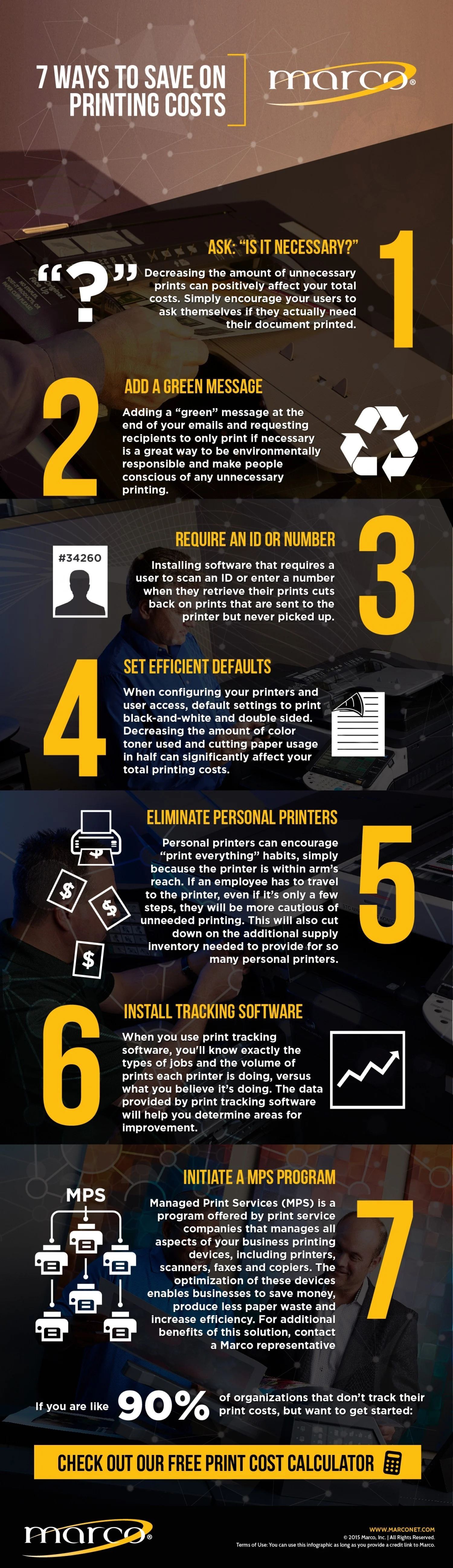
Set the printer defaults to double-sided (duplex) printing and grayscale mode. This ensures that every print job starts with cost-saving parameters, reducing paper and toner consumption by up to 50%. Most wireless printer management apps allow you to push these settings to all connected devices, enforcing consistency across your workflow.
Activate built-in cloud services like AirPrint (Apple), Mopria (Android/Windows), or manufacturer-specific apps. This allows users to send documents directly from smartphones or tablets without needing to install additional software or connect to a specific computer. Reducing the dependency on host computers minimizes hardware wear and tear.
By standardizing these wireless workflows, you create a streamlined environment where printing is efficient, monitored, and inherently cost-conscious. The reduction in hardware maintenance and the optimization of supply usage directly contribute to long-term savings.
Audit usage and manage toner
Saving on printing costs starts with understanding what your team is actually printing. Without visibility into individual habits, toner and paper waste often go unnoticed until the budget is already strained. By auditing usage and managing consumables, you can identify unnecessary print jobs and switch to more efficient defaults.
Track who prints what
Install print tracking software to monitor activity across your wireless printers. This tool reveals which users or departments generate the most pages, allowing you to set quotas or require authentication before printing. Identifying waste early helps you enforce policies that reduce unnecessary color and double-sided prints.
Optimize default settings
Change the default settings on all wireless printers to draft mode and black-and-white. Most documents do not require high-quality color output, and draft mode uses significantly less toner. Additionally, set double-sided printing as the standard option to cut paper consumption in half. These small adjustments compound quickly over thousands of pages.
Manage toner supplies
Monitor toner levels proactively rather than waiting for cartridges to fail. Many modern wireless printers offer remote management dashboards that alert you when supplies are low. Replace cartridges only when necessary and consider using high-yield options for high-volume users to reduce the frequency of changes and lower the cost per page.
No comments yet. Be the first to share your thoughts!