
The reality of home printing
We were told the paperless office was coming, but my desk says otherwise. Between signing contracts and reviewing long reports, I still find myself reaching for a hard copy. Most remote workers I know are in the same boat; digital workflows are great until you need to see a spreadsheet on physical paper to actually make sense of it.
However, setting up and maintaining a printer at home isn’t always a smooth experience. For those less comfortable with technology, wrestling with drivers, network settings, and wireless connections can be a real headache. The frustration isn’t just about the initial setup, but also about ongoing connectivity issues and troubleshooting. It's a common pain point I hear about frequently from people adjusting to working from home.
This is where the concept of 'zero-touch' installation comes in. The idea is simple: a printer that connects to your network and is ready to use with minimal effort. It’s about removing the technical barriers and making printing accessible to everyone, regardless of their tech skills. A printer that just works is a huge win for remote productivity.
Defining zero-touch setup
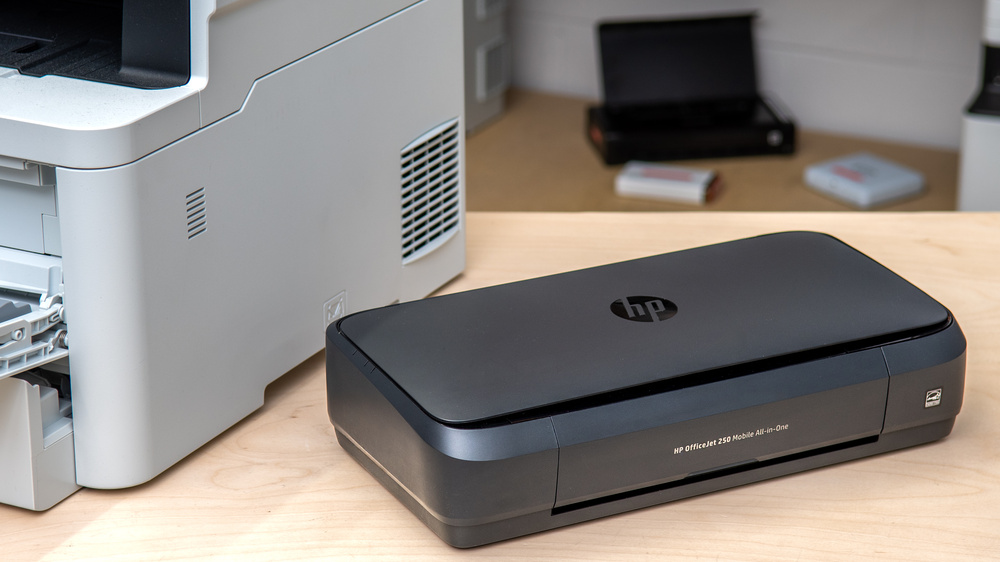
Zero-touch setup is about more than just Wi-Fi. It is the difference between a printer that works out of the box and one that requires an afternoon of troubleshooting. A true zero-touch machine handles driver installation and network onboarding automatically, so you aren't stuck typing a 20-character Wi-Fi password into a tiny, non-touch screen.
The technologies that enable this are becoming increasingly sophisticated. Wi-Fi Protected Setup (WPS) is one example, allowing devices to connect with a simple button press. Bluetooth setup is another, using your smartphone or computer to guide the process. Cloud print services, like those offered by HP, also play a role, allowing the printer to register and configure itself automatically. The goal is to abstract away the complexities of networking.
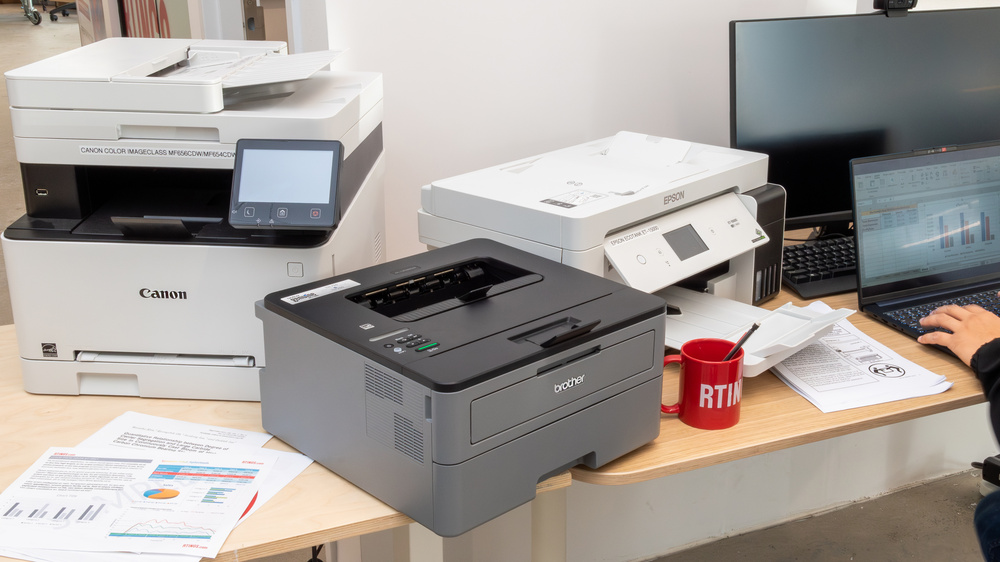
The HP Smart app is a widely used example, providing a guided setup experience for HP printers. But the move towards zero-touch isn’t exclusive to one brand. Canon and Epson also offer similar solutions, streamlining the process with their own apps and software. The key is a seamless integration with your operating system – Windows, macOS, iOS, or Android – and a minimal amount of user intervention.
Printers that actually set themselves up
Finding a printer that actually sets itself up is difficult. Based on Emerald Document’s 2026 data and my own testing, a few models stand out. Setup ease varies depending on your router, but these machines are the most reliable for a quick start.
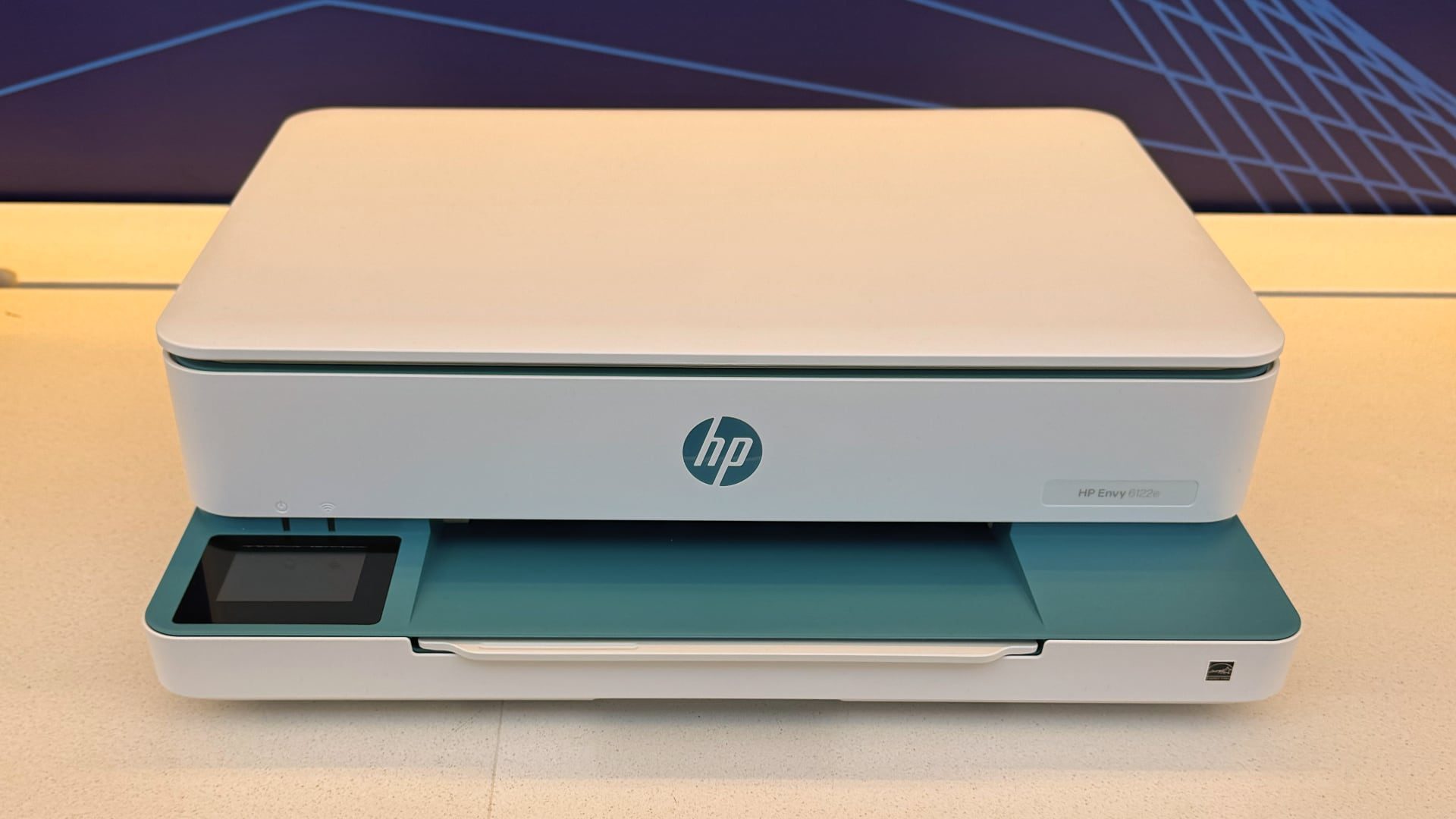
The HP OfficeJet Pro 9015e consistently receives high marks for its effortless setup through the HP Smart app. It’s an inkjet all-in-one, meaning it can print, scan, copy, and fax. The app guides you through connecting to Wi-Fi and registering the printer, even handling driver installation automatically. It supports Windows, macOS, iOS, and Android. While setup is generally smooth, some users have reported occasional issues with the app recognizing the printer on initial connection.
For those needing color laser quality, the Canon imageCLASS LF3200CDW is a strong option. It’s a compact color laser printer that connects easily to your network via Wi-Fi. The Canon PRINT Business app simplifies setup, and WPS is supported for quick connection. While the initial setup is straightforward, configuring advanced features might require navigating the printer’s web interface.
The Brother MFC-J4335DW is another excellent inkjet all-in-one known for its user-friendly setup. It offers a robust feature set, including automatic document feeding and duplex printing. The Brother Mobile Connect app makes wireless setup a breeze, and it's compatible with a wide range of devices. Some users have noted that the initial print quality settings may need adjustment for optimal results.
If you’re looking for a more budget-friendly option, the Epson EcoTank ET-2800 is worth considering. It’s a cartridge-free inkjet printer, meaning you refill it with bottles of ink instead of replacing cartridges. The Epson Smart Panel app simplifies setup and allows for remote printing and scanning. However, the setup process can be slightly more involved than with some other models, requiring you to prime the printhead before first use.
The Ricoh SP C260SFn is a color laser printer that balances affordability with performance. Ricoh’s focus on business solutions means the printer is designed for reliability and ease of management. While the setup isn't quite as automated as some of the inkjet options, it’s still relatively straightforward, and the print quality is excellent. According to MSA Digital, Ricoh is a key player in providing solutions for the remote workforce.
Finally, the Kyocera ECOSYS PA2200w is a monochrome laser printer ideal for users who primarily print text documents. It’s compact, energy-efficient, and offers a fast print speed. Setup is simple, with support for Wi-Fi and mobile printing. While it lacks color printing capabilities, it’s a reliable and affordable option for basic printing needs.
Featured Products

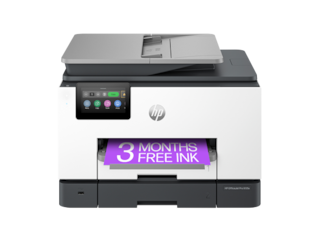
Wireless Color All-in-One Printer · Bonus 6 months Instant Ink with HP+ · Self-healing Wi-Fi
This HP OfficeJet Pro offers reliable wireless connectivity and a bonus of 6 months of Instant Ink with HP+, making it a convenient choice for remote work.

INKvestment Tank for high-volume printing · Print, Copy, Scan, Fax capabilities · 20 ppm print speed and 20-Sheet ADF
The Brother MFC-J4535DW provides robust functionality with its INKvestment Tank system, ensuring consistent performance for your home office printing needs.

All-in-One: Print, Copy, Scan, Fax · Automatic Document Feeder (ADF) · AirPrint (R), Android, Works with Alexa compatibility
This compact Canon PIXMA TR8620a is a versatile and affordable option for remote workers, offering essential all-in-one features and broad device compatibility.

Cartridge-Free Supertank system for ultra-low-cost printing · Scanner, Copier, ADF included · Wireless and Ethernet connectivity
The Epson EcoTank ET-3850 is recommended for its cartridge-free design, offering significant long-term savings and reliable wireless printing for busy home offices.

Color Laser Printer with 26 ppm print speed · Automatic Duplex Print · Wireless LAN connectivity
For color laser quality and speed, the Lexmark CX331adwe delivers reliable wireless printing and automatic duplexing, ideal for professional remote work environments.
As an Amazon Associate I earn from qualifying purchases. Prices may vary.
Inkjet or laser?
Choosing between an inkjet and a color laser printer depends heavily on your specific needs. Traditionally, laser printers were favored for high-volume printing and fast speeds. This is still generally true; laser printers excel at churning out large documents quickly. However, modern inkjet technology has closed the gap considerably.
For the average remote worker who prints occasionally – perhaps a few documents a week – an inkjet printer might be perfectly adequate. Inkjet printers are typically cheaper to purchase upfront, and the print quality for photos and graphics can be superior. However, the cost per page can be higher, especially if you’re printing a lot of color documents. While ink prices have fluctuated, tank-style inkjets like the Epson EcoTank series can significantly reduce running costs.
Color laser printers, on the other hand, offer a lower cost per page, making them more economical for high-volume printing. They also produce sharper text and are less prone to smudging. The initial investment is higher, but the long-term savings can be substantial. If you frequently print reports, presentations, or other professional documents, a color laser printer is a good choice. Consider the print volume and the types of documents you print most often when making your decision.
Inkjet vs. Laser Printers for Home Office Use (2026 Considerations)
| Feature | Inkjet Printers | Laser Printers |
|---|---|---|
| Initial Cost | Generally Lower | Generally Higher |
| Cost Per Page | Potentially Higher (ink cartridges) | Potentially Lower (toner cartridges) |
| Print Speed | Variable, can be slower for high-volume text | Generally Faster, especially for text documents |
| Text Print Quality | Good, but may be less crisp for very small fonts | Excellent, consistently sharp and clear |
| Photo Print Quality | Better, wider color gamut, smoother gradients | Acceptable for basic photos, but generally not as vibrant |
| Maintenance | More frequent, potential for clogged nozzles | Less frequent, toner doesn't dry out |
| Best For | Photos, documents with graphics, occasional printing | High-volume text documents, professional reports |
Qualitative comparison based on the article research brief. Confirm current product details in the official docs before making implementation choices.
Beyond Setup: Wireless Features to Look For
Once your printer is connected to your Wi-Fi network, there’s more to wireless printing than just hitting "print." Mobile printing capabilities, like Apple AirPrint and Android printing, allow you to print directly from your smartphone or tablet without installing additional apps. This is incredibly convenient for printing on the go.
Cloud printing services, such as HP ePrint (though its future is uncertain as cloud services evolve), enable you to print from anywhere with an internet connection. While Google Cloud Print has been discontinued, many manufacturers offer their own cloud printing solutions. These services can be particularly useful for remote teams who need to share documents for printing.
Voice assistant integration is another feature to consider. Some printers now support voice commands through Amazon Alexa or Google Assistant, allowing you to print documents with just your voice. From a security standpoint, it’s crucial to secure your wireless printer with a strong password and enable encryption to prevent unauthorized access. Regularly update the printer’s firmware to patch any security vulnerabilities.
Troubleshooting Common Wireless Printing Issues
Even with zero-touch installation, wireless printing can sometimes be problematic. One common issue is the printer not being found by your computer or mobile device. First, ensure the printer is powered on and connected to the same Wi-Fi network as your device. Restarting both the printer and your device can often resolve the issue. Check the printer’s IP address and enter it directly into your browser to access the printer’s web interface.
Connection drops are another frequent complaint. This could be due to a weak Wi-Fi signal or interference from other devices. Try moving the printer closer to your router or switching to a different Wi-Fi channel. Poor print quality can be caused by low ink or toner levels, clogged printheads, or incorrect print settings. Run the printer’s cleaning utility to clear any blockages.
Driver issues are a common culprit. If the printer is acting up, check the manufacturer's site for an update. HP, Canon, and Epson usually have a dedicated support page where you can search by model number. If that fails, the online manual is usually more helpful than the generic Windows troubleshooter.
No comments yet. Be the first to share your thoughts!