
The reality of sub-$300 color lasers
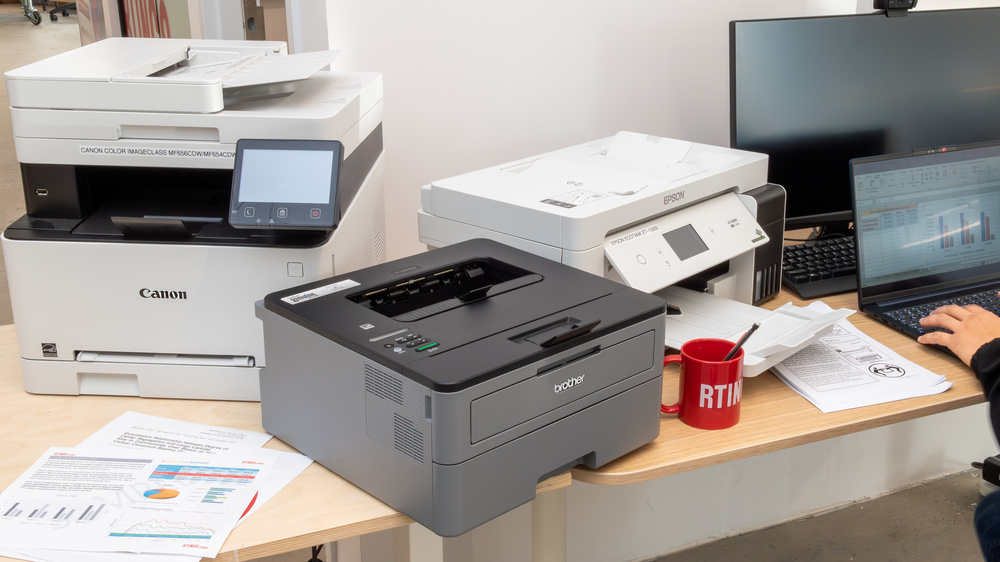
A color laser printer is a practical tool for small offices that need professional documents without the wait times of a print shop. At the sub-$300 price point, you have to be realistic. These machines are slower and less durable than $1,000 workhorses, but they get the job done for light use.
Typically, those compromises center around print speed, duty cycle (the number of pages the printer can reliably handle per month), and extra features. In 2026, we’re still seeing those trade-offs. Expect print speeds in the 15-25 pages per minute (PPM) range for color, and a monthly duty cycle of around 1,500 to 2,000 pages. That’s fine for many small businesses, but heavy users will need to consider a higher-end model.
You can find reliable machines for reports and presentations. Component prices have dropped recently, making color more accessible. If you mostly print black and white text, stick with a monochrome laser. It is cheaper to run and faster for high-volume tasks.
Before diving in, consider what you really need. Do you need automatic duplex printing (printing on both sides of the paper)? Wireless connectivity? Mobile printing support? Knowing your priorities will help you narrow down your options and find the best printer for your budget.
Top picks for 2026
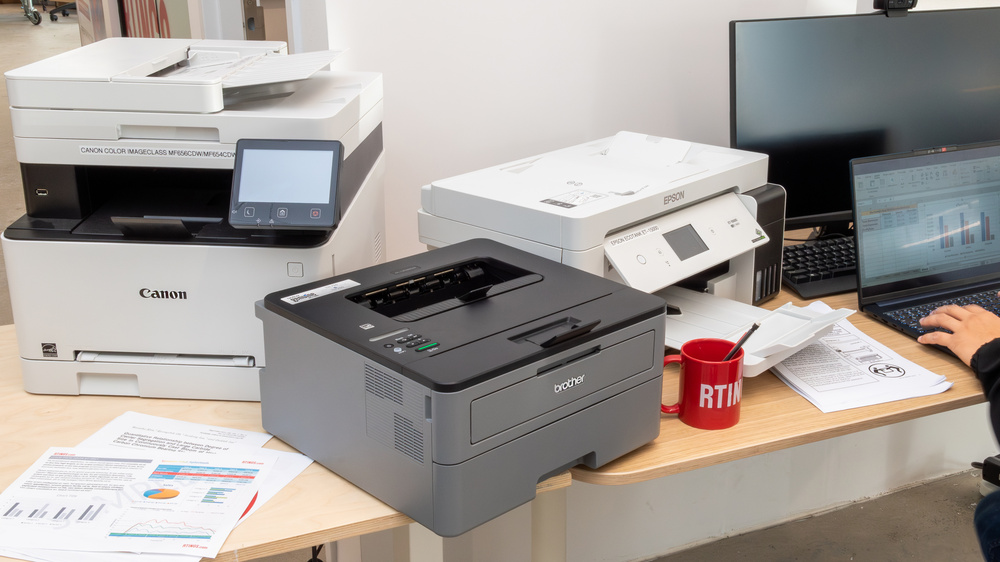
These options are based on current 2026 pricing at Best Buy and Amazon. While prices fluctuate, these models consistently stay near the $300 mark.
The Brother HL-L3270CDW consistently ranks well. Available on Amazon for around $250, it offers a print speed of 25 PPM, a resolution of 2400 x 600 DPI, and built-in Wi-Fi and duplex printing. Users praise its reliability and print quality, but some note the toner cartridges are relatively small.
The HP Color LaserJet Pro M154dw is another strong contender, typically found on Best Buy for around $280. It boasts a print speed of 18 PPM, similar resolution to the Brother model, and supports mobile printing via HP Smart App. It's known for its compact size and ease of use, though the paper capacity is somewhat limited.
The Canon imageCLASS Color MF644Cdw (around $299 on Amazon) is an all-in-one printer, meaning it includes scanning and copying functionality. It prints at 21 PPM, has a good paper capacity, and offers a user-friendly touchscreen interface. Some users say the scanning quality isn’t the best, but it's a good option if you need a multi-function device.
The Lexmark CS310dn (around $230 at Best Buy) is a more basic model, but it offers a good balance of price and performance. It prints at 20 PPM, has a decent paper capacity, and is known for its durability. It lacks Wi-Fi connectivity, so you’ll need to connect it via USB or Ethernet. This is a good pick if you have a dedicated network port available.
Finally, the Samsung SL-C565FW (often around $260 on Amazon) offers a stylish design and a good set of features, including Wi-Fi Direct and mobile printing. It prints at 18 PPM and has a reasonable paper capacity. Some users have reported issues with toner cartridge compatibility, so it's worth checking reviews before purchasing.
These are all viable options, but the 'best' printer depends on your specific needs. Consider your print volume, desired features, and budget when making your decision.
Featured Products

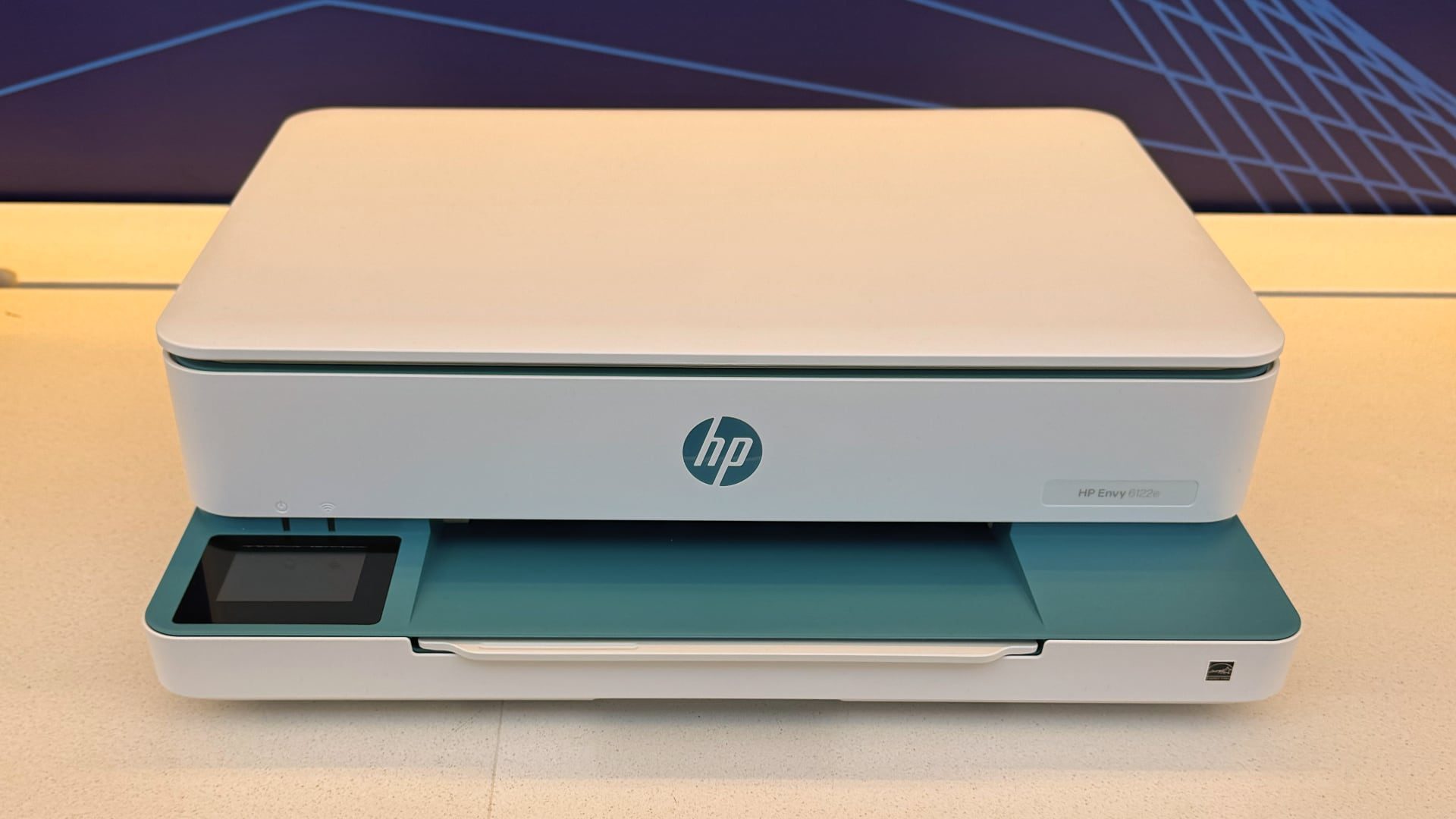
Compact digital color printer · Provides laser printer quality results · Wireless connectivity
This printer offers laser-quality color prints in a compact design with wireless capabilities, suitable for small office environments.

Black toner cartridge · Compatible with Color LaserJet Pro M155, Color LaserJet Pro MFP M182, M183 series
This is a genuine HP black toner cartridge designed for specific HP Color LaserJet Pro models, ensuring consistent print quality.

Multifunction wireless laser printer · Duplex printing · Amazon Dash Replenishment Ready
This multifunction printer offers wireless and duplex printing, along with the convenience of Amazon Dash Replenishment and a substantial warranty.

Color laser printer · 26 ppm mono and color print speed · Automatic duplex printing
This Lexmark printer delivers fast color and mono printing with automatic duplexing and wireless connectivity, while also being energy efficient.

Wireless color laser printer · Duplex printing · Designed for office use
This HP Color LaserJet Pro printer is optimized for office environments, offering wireless and duplex printing for efficient document production.
As an Amazon Associate I earn from qualifying purchases. Prices may vary.
Speed and resolution trade-offs
Advertised print speeds (PPM – pages per minute) are often optimistic. These numbers are usually achieved under ideal conditions, like printing simple text documents. In real-world scenarios, printing complex graphics or color images will significantly slow down the process. Expect actual print speeds to be 10-20% lower than advertised.
Print resolution, measured in DPI (dots per inch), affects image quality. Higher DPI means sharper, more detailed prints. For general office documents, 600 DPI is usually sufficient. However, for photos or graphics, you’ll want a printer with a resolution of at least 2400 x 600 DPI. There’s a trade-off, though: higher resolution often means slower print speeds.
Printers also offer different print modes – draft, normal, and best. Draft mode prioritizes speed and uses less toner, but the print quality is lower. Normal mode is a good balance between speed and quality. Best mode delivers the highest quality prints, but it’s the slowest and most expensive in terms of toner consumption. It’s important to choose the right mode for the job.
Don't get too hung up on small differences in DPI. A 2400 x 600 DPI printer will likely look very similar to a 3600 x 1200 DPI printer in most everyday printing tasks. The quality of the toner and paper also plays a significant role in the final output.
Wireless and mobile connections
Wireless connectivity is practically a necessity for most small businesses these days. Wi-Fi Direct allows you to print directly from your laptop or mobile device without connecting to a network, which is handy for quick prints. AirPrint support (for Apple devices) and similar technologies (like Mopria for Android) make mobile printing even easier.
Setting up wireless printing usually involves connecting the printer to your Wi-Fi network via a simple setup wizard. Most printers have a control panel with a screen that guides you through the process. However, occasionally, you might encounter connection issues. Making sure your printer and computer are on the same network, and that you have the latest printer drivers installed, are good first steps.
Security is also important. Make sure your Wi-Fi network is password-protected, and consider enabling security features on the printer itself, such as restricting access to certain functions. Connecting via Ethernet offers a more stable and secure connection, but it requires a physical cable connection.
The HP Color LaserJet Pro M154dw, for example, boasts a particularly easy setup process through the HP Smart App, making it a good choice for users who aren't tech-savvy. The Canon imageCLASS Color MF644Cdw also has a user-friendly touchscreen interface that simplifies wireless setup.
Toner costs and maintenance
The initial purchase price of the printer is only one part of the cost. Toner cartridges can be surprisingly expensive, and they need to be replaced regularly. The cost per page (CPP) is a more accurate measure of the long-term printing costs. This is calculated by dividing the cost of a toner cartridge by the estimated page yield.
As of late 2026, a standard toner cartridge for the Brother HL-L3270CDW costs around $70 and yields approximately 1,400 pages, resulting in a CPP of around $0.05 per page. The HP Color LaserJet Pro M154dw has cartridges that cost around $80 and yield 1,000 pages, for a CPP of $0.08. These are estimates, and actual costs may vary.
Look for printers that offer high-yield toner options. These cartridges contain more toner and last longer, reducing your CPP. Compatible toner cartridges (from third-party manufacturers) are often cheaper than genuine brand-name cartridges, but their quality can vary. Do your research before using compatible cartridges.
Printer maintenance is also important. Regularly cleaning the printer and removing paper jams can help prevent problems and extend its lifespan. Replacement parts, like fuser units and transfer belts, will eventually need to be replaced, adding to the overall cost of ownership.
Notable features
The Canon imageCLASS Color MF644Cdw truly stands out for its all-in-one functionality. Having a built-in scanner and copier in a printer at this price point is a significant benefit for many small businesses. It's a space saver and reduces the need for separate devices.
The Lexmark CS310dn, while lacking Wi-Fi, offers surprisingly fast duplex printing for the price. If you frequently print double-sided documents, this could be a real time-saver. It's a solid, dependable workhorse.
The Brother HL-L3270CDW consistently receives praise for its intuitive control panel. It’s easy to navigate the menu and adjust settings, even for users who aren’t particularly tech-savvy. This ease of use can save you time and frustration.
Some printers, like the Samsung SL-C565FW, come bundled with software that can be useful for managing your printing tasks. Always check what's included with the printer before purchasing.
Eco-Friendly Printing Considerations
Printing, by its nature, isn’t the most environmentally friendly activity. However, there are steps you can take to minimize its impact. Using recycled paper is a simple and effective way to reduce your environmental footprint. Look for paper that is made from 100% post-consumer recycled content.
Choosing printers with energy-saving modes can also help. These modes reduce power consumption when the printer is idle. Properly disposing of toner cartridges is crucial. Many manufacturers offer toner recycling programs, which allow you to return used cartridges for recycling.
Printing only what you need and using duplex printing (printing on both sides of the paper) can also significantly reduce paper consumption. Even small changes can make a difference.
Every printer has an environmental footprint. Choosing duplex settings and recycling cartridges helps reduce the waste your office produces.
No comments yet. Be the first to share your thoughts!